
(00)Product / Collaboration
Every request, review and approval has an owner, so nobody has to chase the next step.
- 01RequestOwner assigned
- 02Review and decideDecision recorded
- 03Keep the historyHistory retained
Obscura connects document requests, reviews and approvals in one workspace, and it keeps both your own staff and external participants accountable for what happens next. Your team spends less time following up in chat and email.
Capabilities depend on the modules and integrations you choose.
(01)The chase
Most of the delay in a review comes from waiting to find out whose turn it is.
A request goes out by email, the reviewer asks for context over chat, and the approver is away when the document finally arrives. Someone then keeps a separate list so the team can follow up, and that follow-up becomes a job of its own.
(02)How work moves in Obscura
In Obscura, the work keeps moving because each step has a clear owner.
Each capability below sits at the stage where your team needs it, from the first request to the final decision.
Illustration
- RequesterAsks for the vendor's documents
- ReviewerChecks the documents
- Procurement manager AwayApproves by position
- DelegateActs for the manager
- External approver Joins through a dedicated link
- SignatureThrough the selected provider
01Request
Give every document request an owner.
You assign each request to a user, a group or a position and track its fulfilment in Obscura, so the team needs fewer separate tracking lists and fewer reminders.
02Review and decide
Give reviewers the context they need to act.
The document, its version history, the discussion and the supporting records stay together, so reviewers spend less time looking for information before they decide.
Keep approvals moving when people change.
You define the approval order, deadlines, delegation and escalation, and each task goes to the responsible position, so the work continues when personnel change.
Include decision-makers from outside your organisation.
External participants can approve or reject through a dedicated link, and the document then continues to signing through the workflow and provider that you selected.
Certified signing and e-Meterai connect through external providers.
03Share and keep the history
Keep external sharing under control.
You set who can use a share link and when it expires, and you can revoke sharing once the business need ends.
Help recipients find answers on their own.
With the AI module, you can turn on document Q&A for selected share links, so recipients can ask questions within the allowance you configure, even without an Obscura account.
(03)In the workspace
The workflow, the decision and the signature are all recorded on the same document.
The screens below come from the product and use sample data.
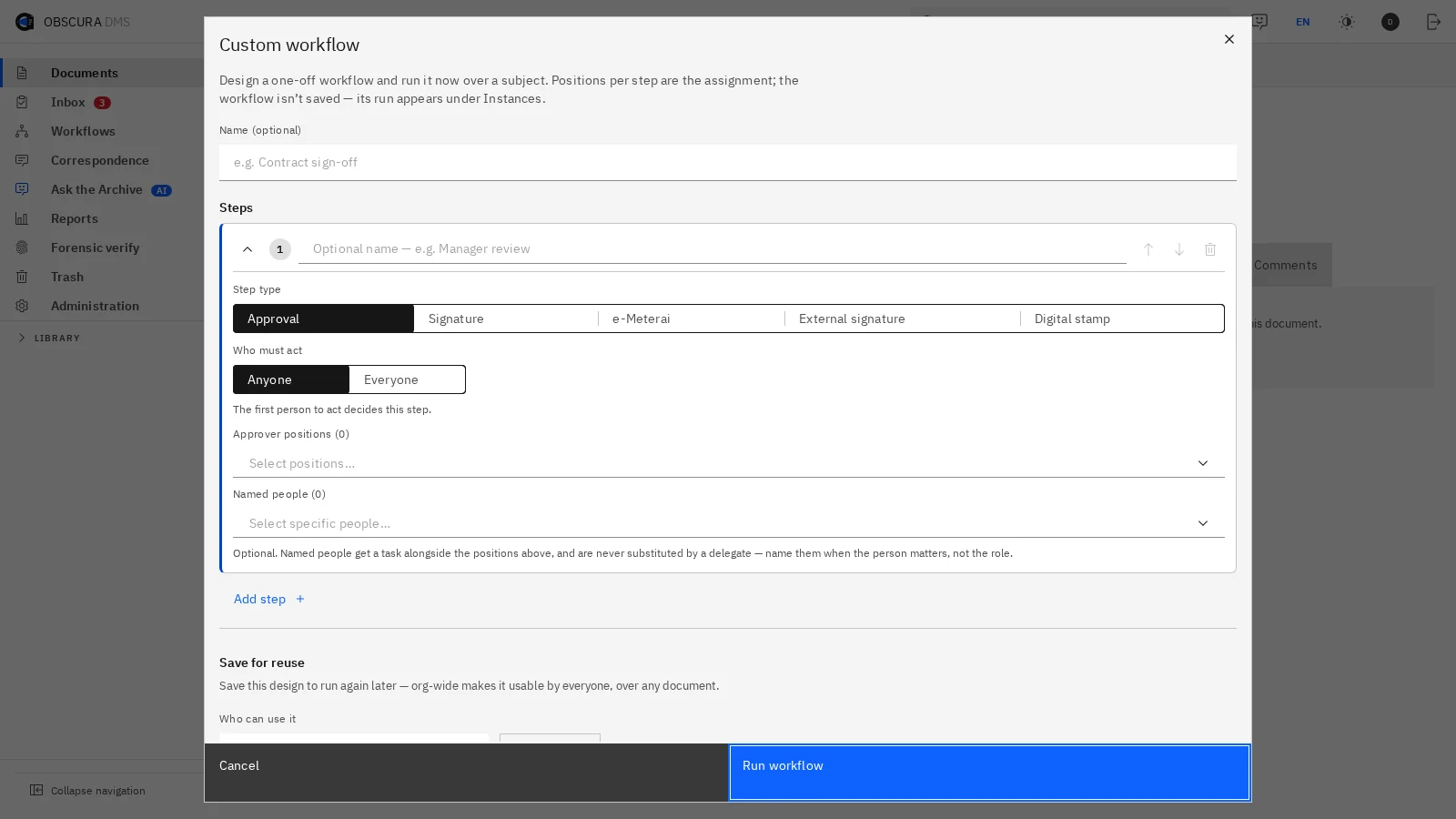 Sample data
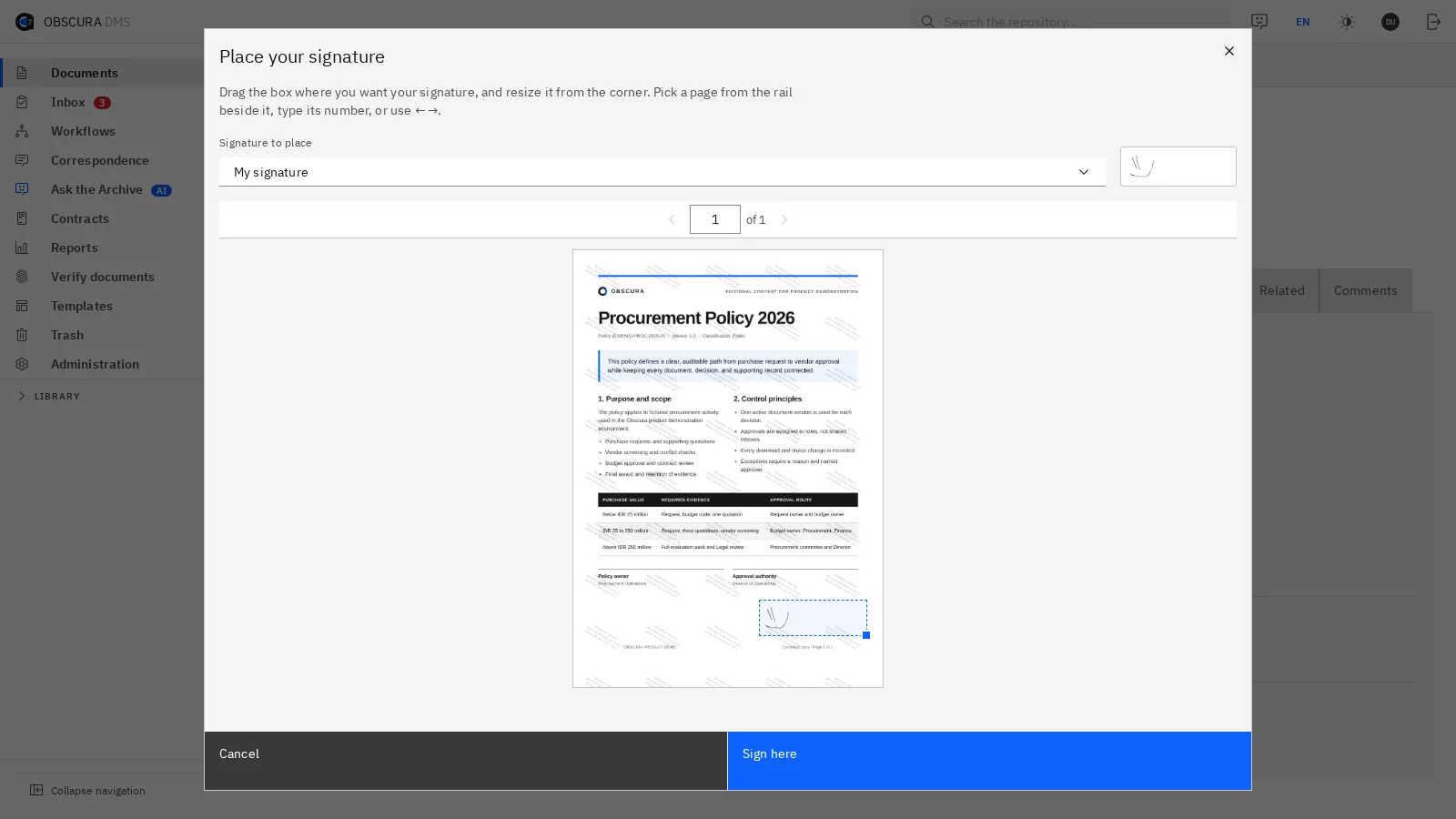 Sample data
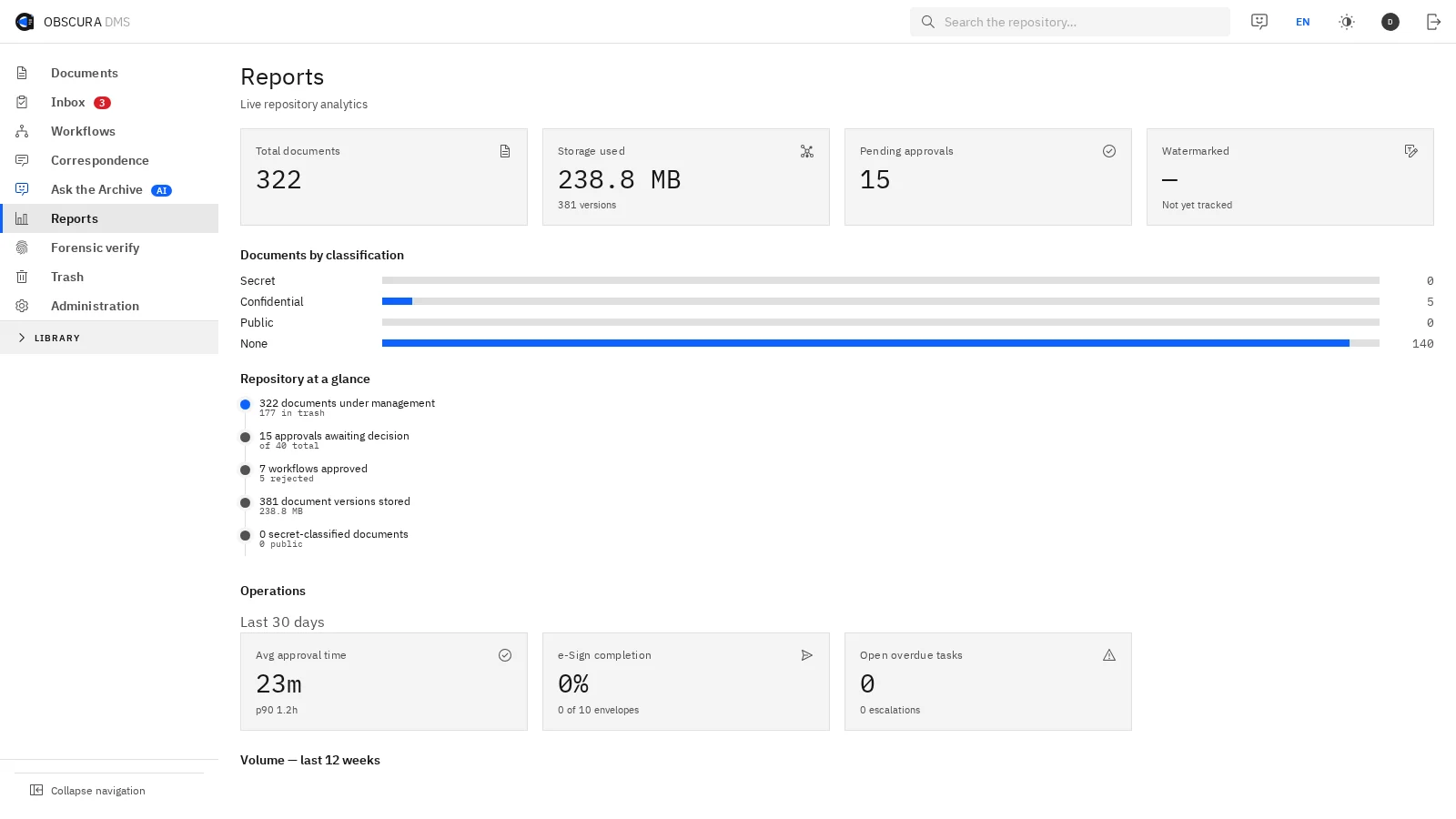 Sample data
(04)Try one request
Run one vendor document request through Obscura, and see how much follow-up it saves.
We take a vendor document request through review and approval together. You then assess ownership, turnaround and evidence before we agree on the scope of a pilot.