(00)Product

Each document stays in one application from its first draft to the archive, so nothing gets lost between the steps.

Your team drafts, approves, signs, stores and searches its documents in Obscura, and each step adds to the same record, with clear owners and controls along the way. You can run it on your own servers, in a private cloud or on a closed network.

Capabilities depend on the modules you choose.

(01)The path

Every stop on this path replaces a handoff that your team does by hand today.

Because all the stops share one record, a document's history builds up while it moves, and nobody has to piece it together afterwards.

01Create

Start new documents from approved templates, and edit them without leaving Obscura.

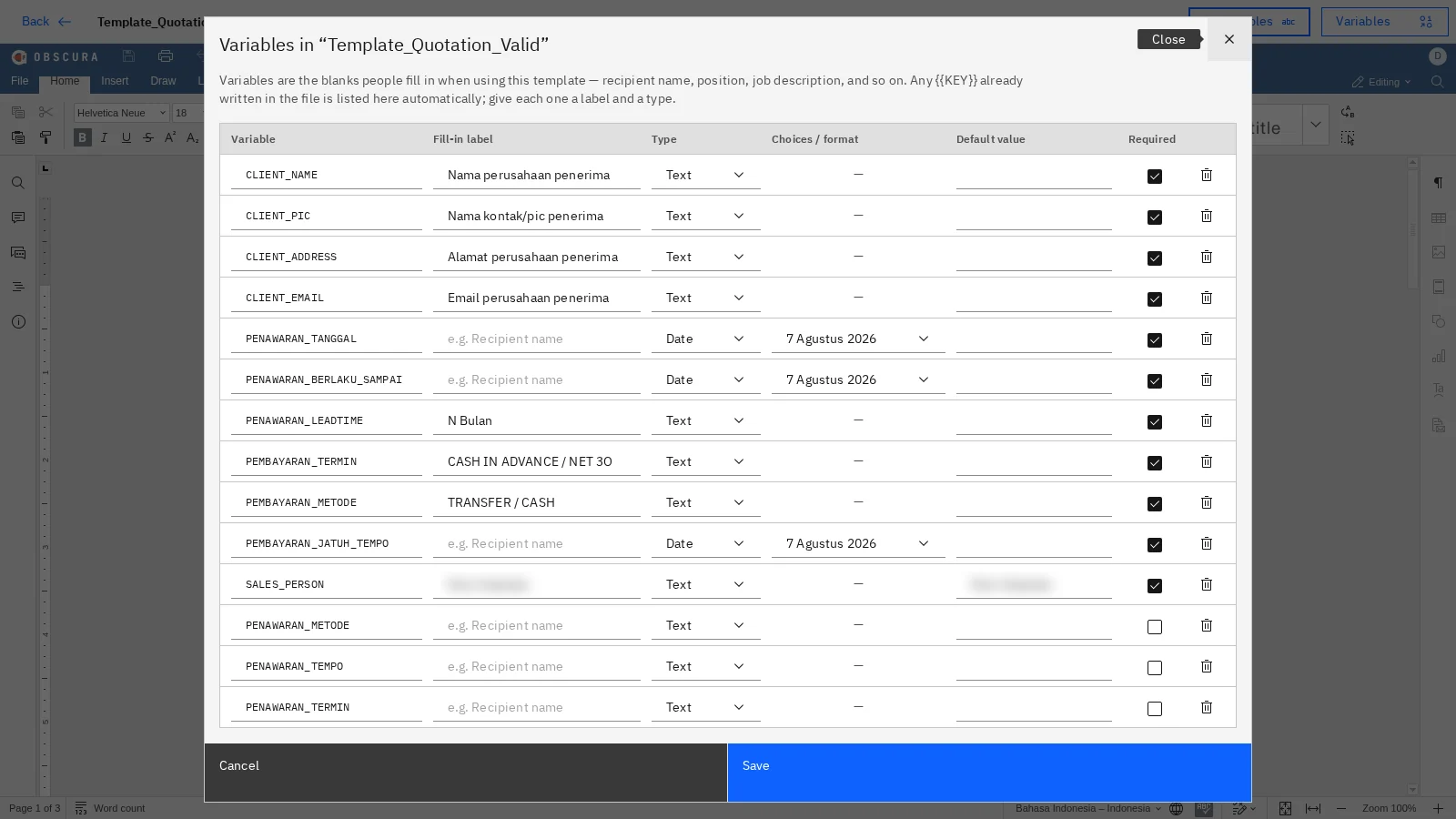
Teams create recurring documents from approved templates with guided fields, so names, dates and formats stay consistent between departments. With the Office module, Word, Excel and PowerPoint files are edited in the browser, and each saved edit becomes a new version for the next review.

Today
Staff copy an old file and replace the names and dates by hand, then download, edit and upload it again while they reconcile competing versions.
In Obscura
Users fill in guided fields and check the result before the document is created, and edits made in the browser return to the same version history.
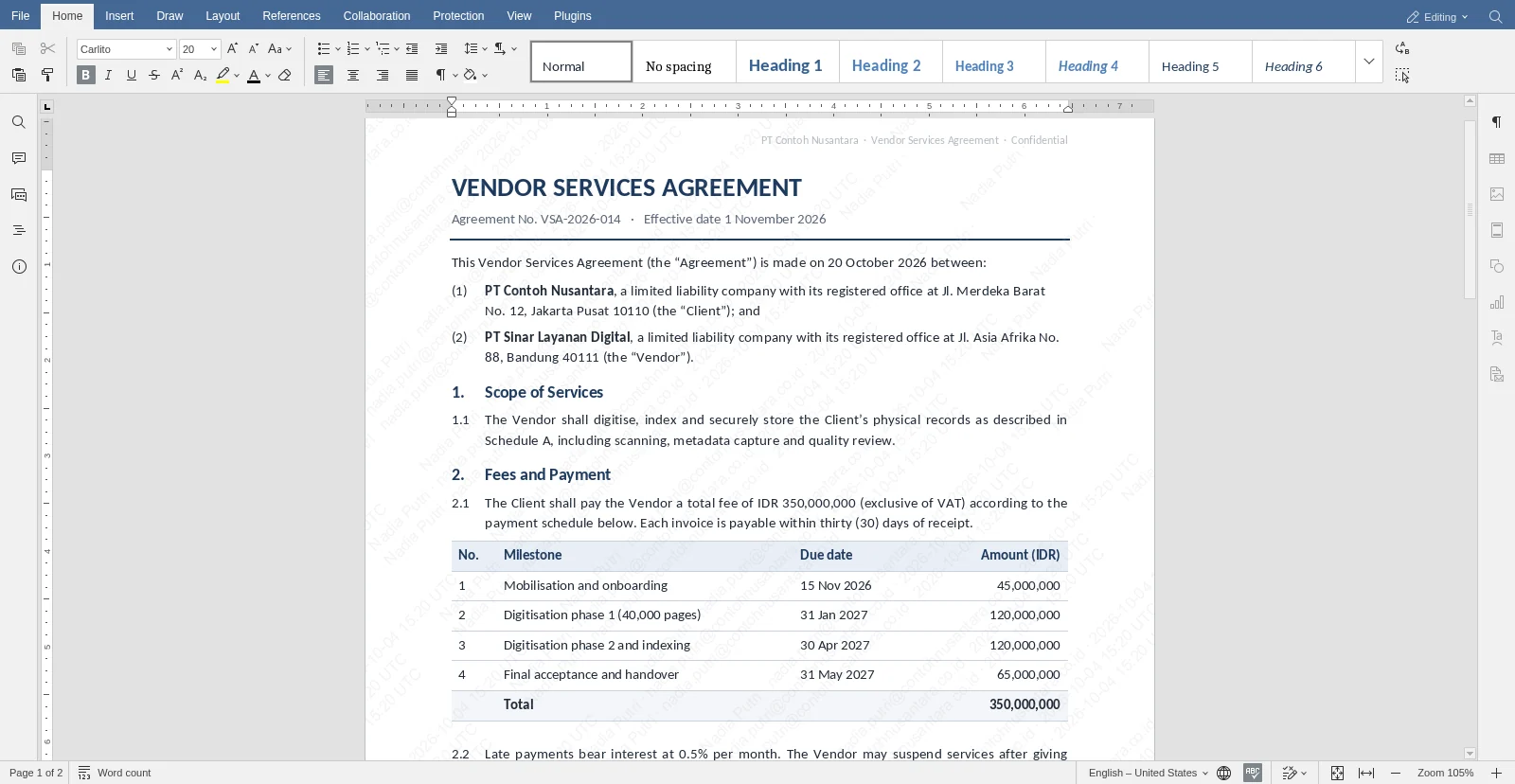
A sample vendor services agreement open in Obscura's browser editor, with the Word-style toolbar above it. Sample data
Fig. 1Reduce file handoffs during editing. Edit Office files within Obscura, connected to version history and approvals.
The variables of a quotation template in Obscura, each with a fill-in label, a type and a required setting.
Fig. 2Standardise repeat documents. Define approved templates and fields for consistent document creation.

02Approve and sign

Approvals follow the roles that you define, and signing happens on the same document.

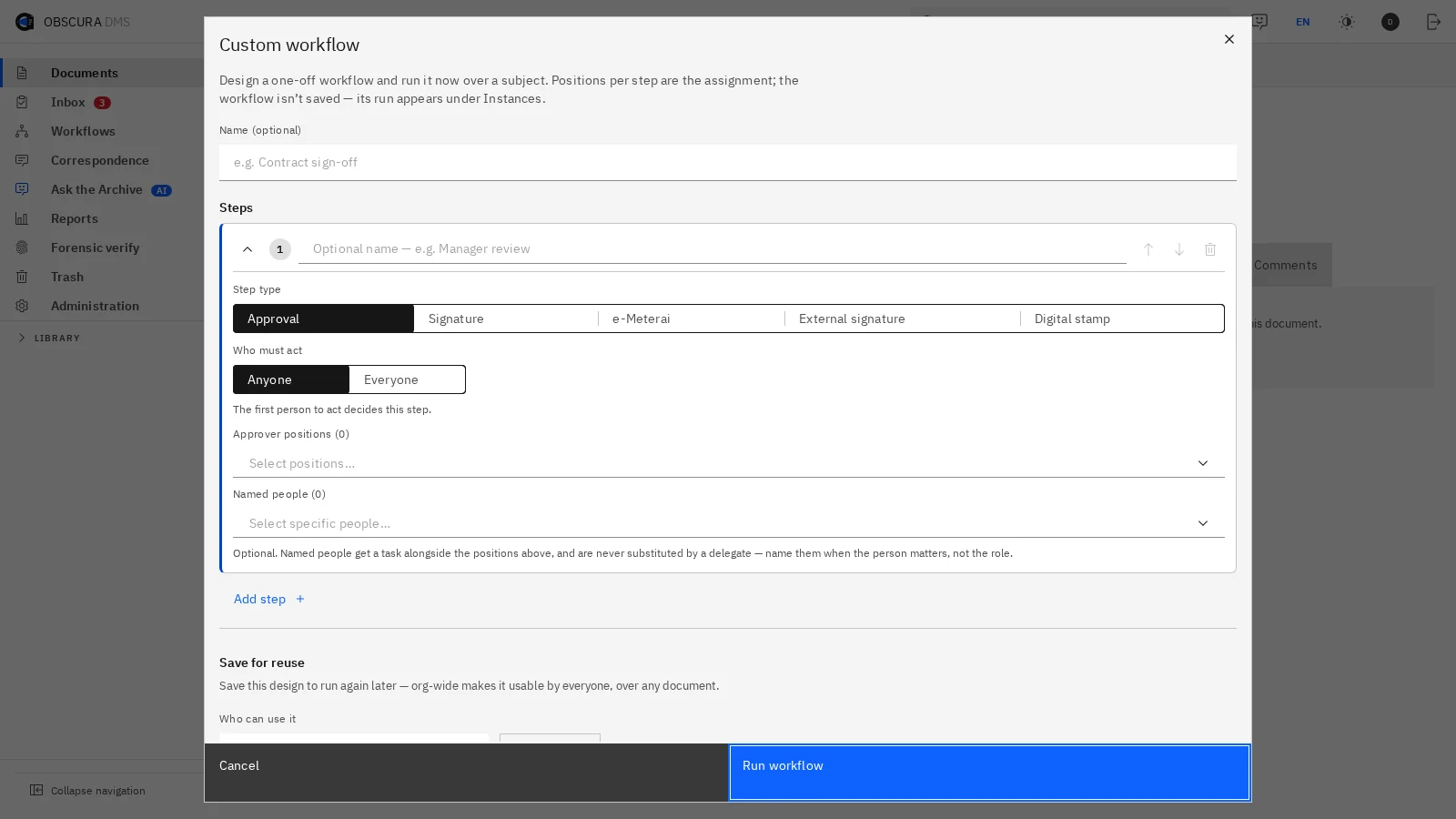
You set the review order, owners, deadlines and delegation for each workflow, so a task goes to the responsible position even when people change or are away. With the e-sign module, certified e-signatures and e-Meterai are applied within the same document history.

Today
Progress depends on someone chasing approvers personally, especially when an approver changes or is unavailable.
In Obscura
Tasks follow defined roles, deadlines and recorded delegation.

Certified signing and e-Meterai connect through external providers.

Obscura's workflow builder, where a step is set as an approval, a signature, e-Meterai or an external signature and assigned to positions. Sample data
Fig. 3Make approval responsibility clear. Define review order, owners and required decisions for each workflow.
The Signatures tab of a sample policy in Obscura, with the choice between an internal signature and a certified PSrE signature, and e-Meterai below.
Fig. 4Connect signing to the business process. Use the e-sign module and configured providers for certified signing and e-Meterai.

03Register

Official letters keep their number, routing and filing together in one record.

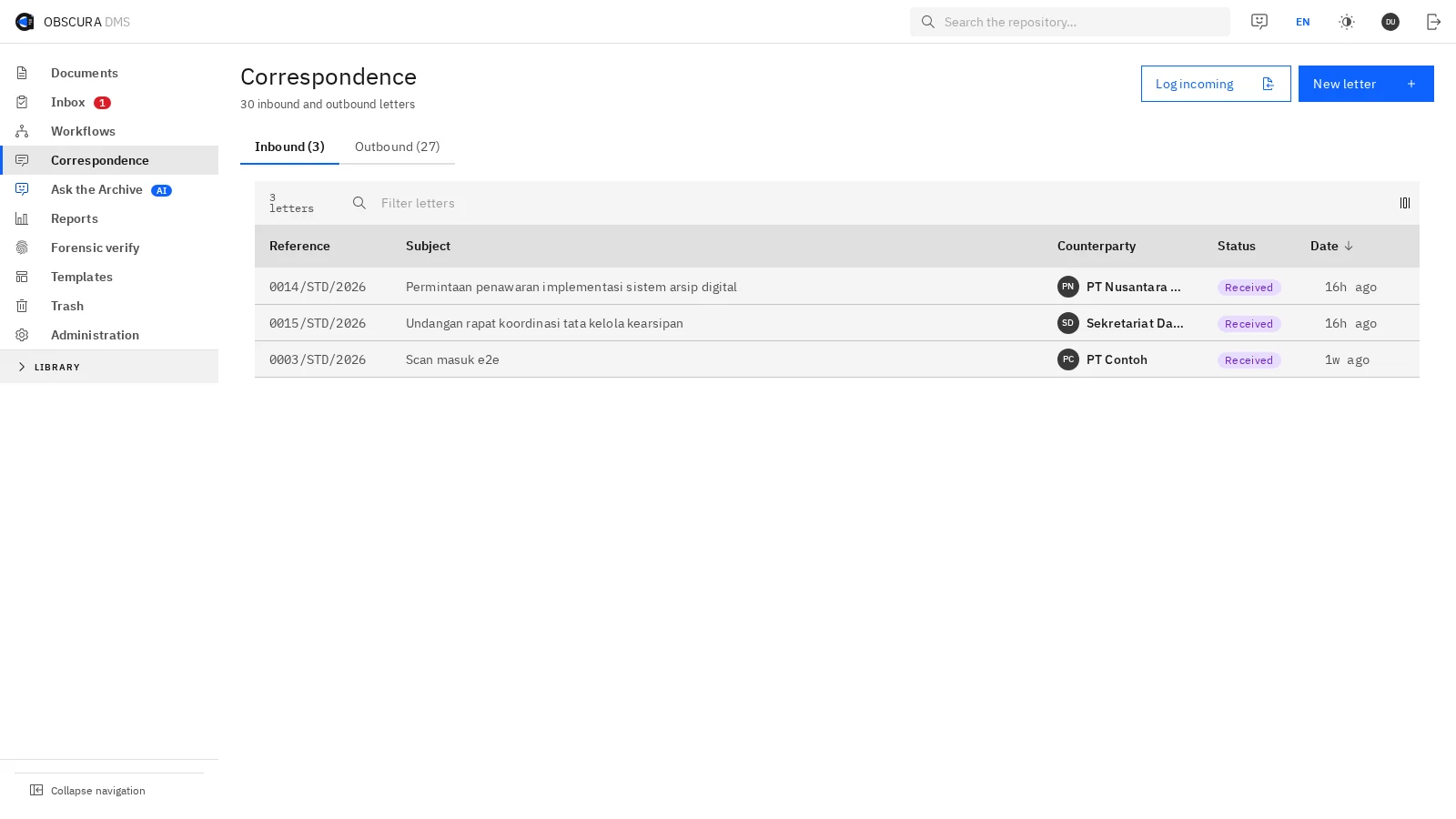
The Correspondence module keeps official numbering, approvals, dispatch records and filing in one place, which cuts the manual administration between departments. Obscura records that a letter went out, while the letter itself is still sent through your usual channels.

Today
Teams reconcile letter numbers, routing instructions and files across separate records.
In Obscura
One record connects the official number, the instructions, the access rights and the filing history.
The correspondence register in Obscura, listing inbound letters with their reference numbers, subjects, counterparties and status. Sample data
Fig. 5Keep correspondence accountable. Track incoming and outgoing letters in a dedicated register.

04Keep

Records are classified and kept for as long as your policy requires.

Documents enter a central repository, where you classify them and apply retention rules and legal holds, so keeping records no longer depends on someone remembering a schedule.

Today
Records sit on personal drives, and someone applies the retention rules by hand.
In Obscura
Records enter a central repository with classification and retention controls.
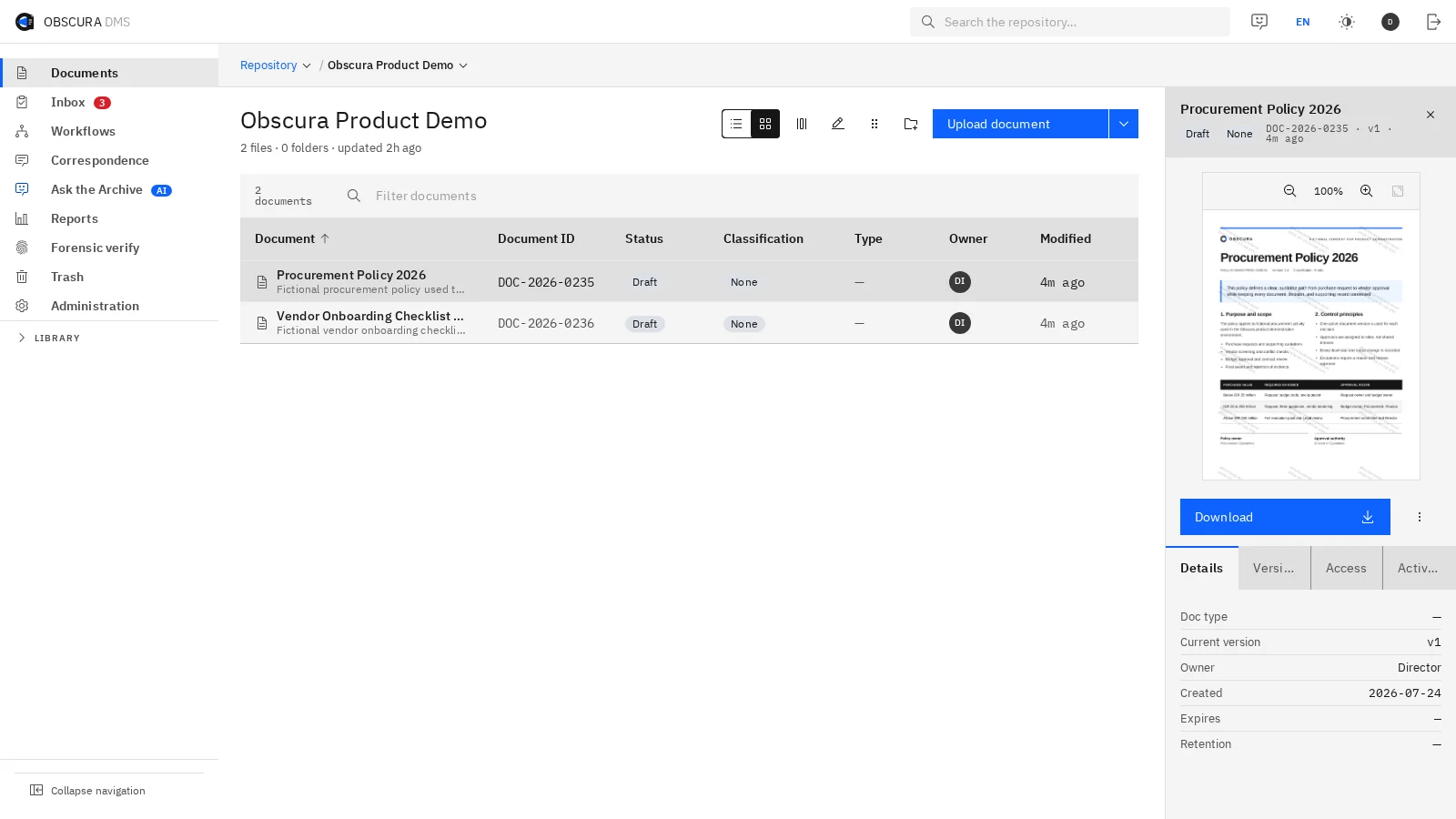
A folder in the Obscura repository, listing documents with their document ID, status, classification and owner, and a details panel on the right. Sample data
Fig. 6Find the document your team needs. Use folders, document status and search to find records and act from one workspace.

05Protect

Permissions decide who can open each document, and the audit history records what happened to it.

Folder and document permissions govern who can view and change each record, and the optional Secure Folder module adds protection around selected folders. All of it runs on the infrastructure that you choose.

Today
Copies circulate through folders and email, so it is hard to tell who has access.
In Obscura
Folder and document permissions govern access, and the audit history records document activity.
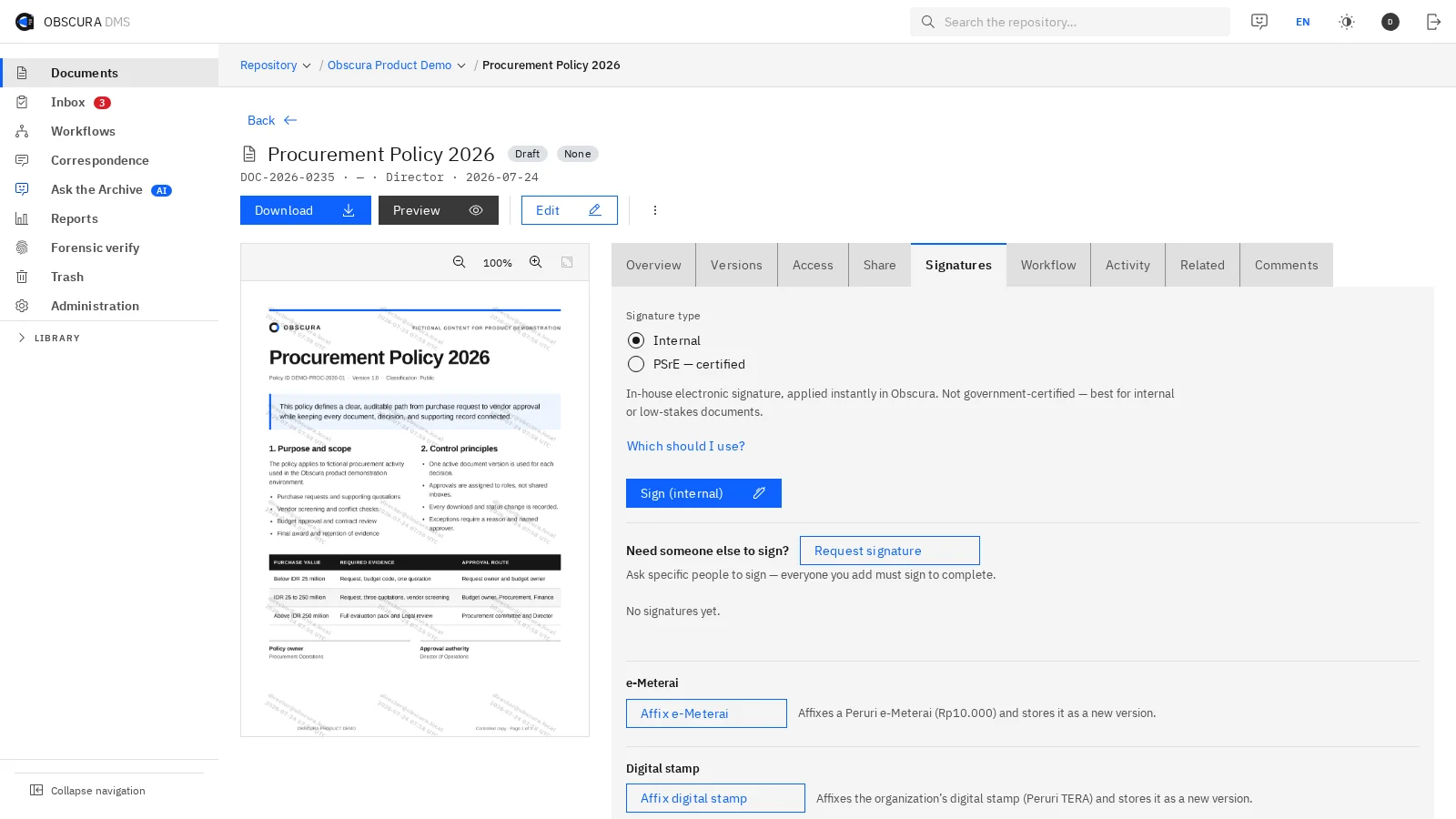
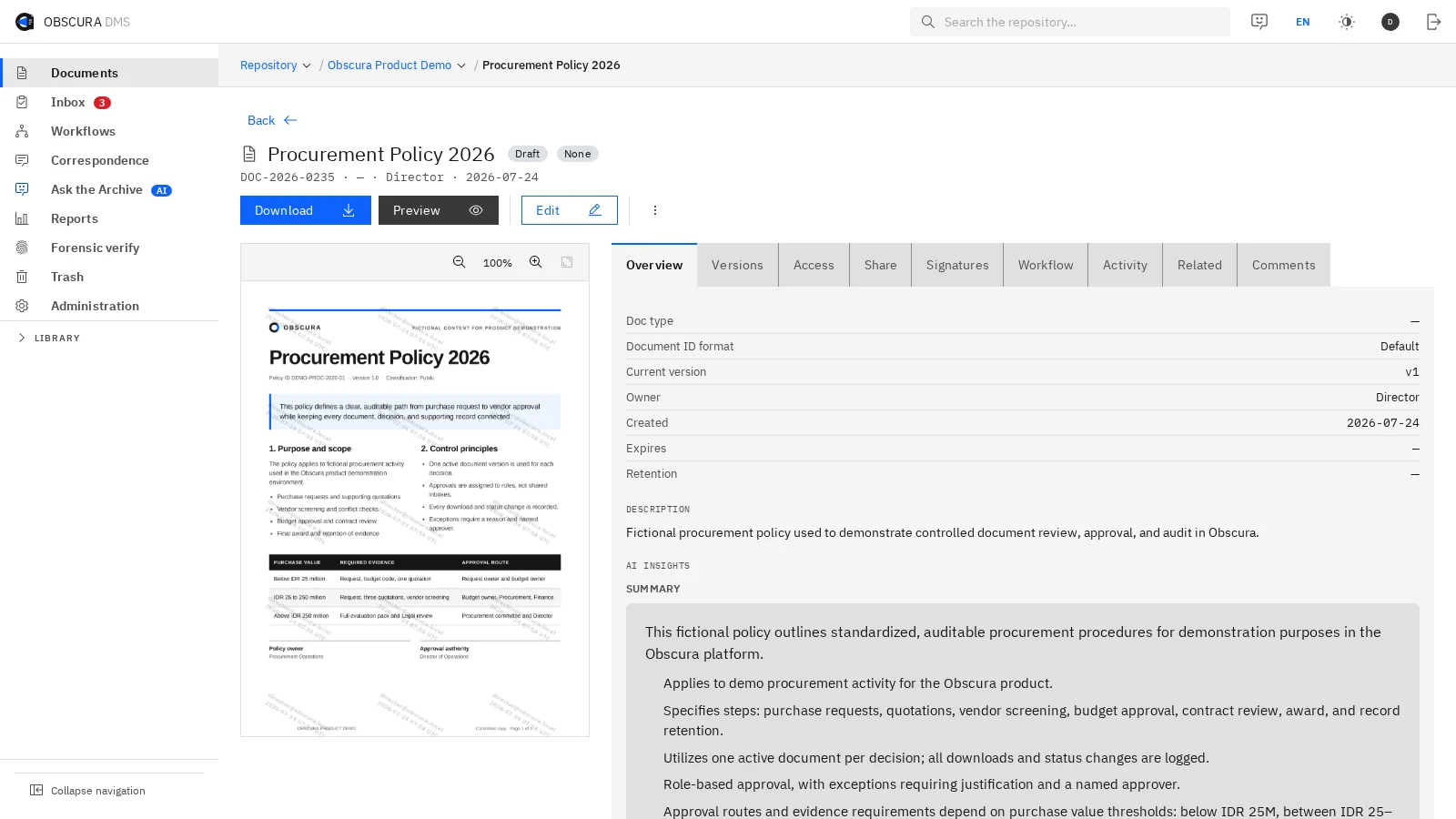
A sample procurement policy open in Obscura, with tabs for its versions, access, signatures, workflow and activity beside the preview. Sample data
Fig. 7Give reviewers the full context. Keep versions, permissions, metadata and activity with the document.

06Share

People outside your organisation can read a document through a link that you control and can revoke.

Each share link can expire and be revoked, and you can protect it with a password, an email one-time code or an allow-list. Every link keeps an access log, and the document's classification decides what may be shared.

Recipients read the document in a secure preview, which shows a visible watermark with the viewer's name, email and the time of viewing. Classifications can block downloads while still allowing people to read.

With the Watermarking module, every protected download or shared copy also carries an invisible mark tied to the person it was issued to. If a copy turns up later, you can trace it back to that person and the time it was issued.

Today
Files leave as email attachments, and once a copy is forwarded, nobody can tell who passed it on.
In Obscura
Links can be revoked, every view in the secure preview is watermarked, and the Watermarking module marks each copy that leaves.

The secure preview shows the visible watermark, while the invisible mark is added to downloaded and shared copies.

Visible watermark: shown in the secure preview Invisible mark: added to copies that leave, with the Watermarking module Illustration with sample data

07Ask

Your team can search the archive and ask questions, and every answer links to its sources.

With the AI module, you can search by meaning rather than exact words and ask a question about one document or a set of folders. Each answer links to the documents it came from, so you can open them and check.

Today
People look through several folders and ask colleagues for the latest file before they can find the paragraph they need.
In Obscura
AI only uses documents that the person asking is allowed to see.

You can run a local model, use an approved provider, or turn AI off entirely.

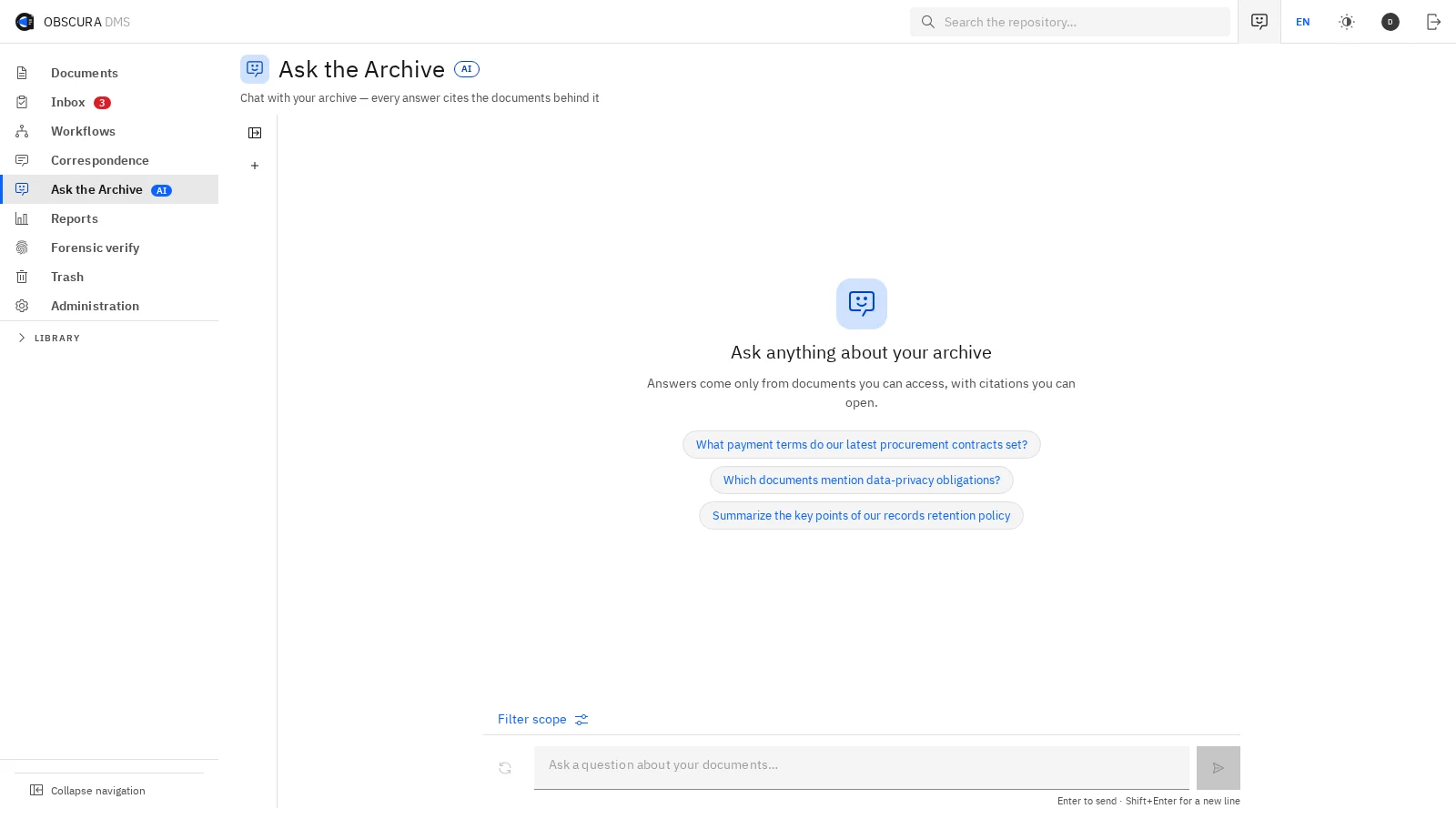
Ask the Archive in Obscura, with suggested questions and a note that answers come only from documents the user can access, with citations to open. Sample data
Fig. 8Get answers with sources to check. The AI module answers from documents the user has permission to access.

08Connect

Every document is connected to the project and the contract that it belongs to.

Obscura lays out a project's contracts, amendments, purchase orders, invoices and acceptance records in one graph. AI suggests new connections and shows the quote that supports each one, but nothing is linked until someone on your team accepts it.

Contract Intelligence

Follow an agreement through its amendments, its delivery records and the invoices that bill against it.

Explore Contract Intelligence
Project Intelligence

See a whole project on one map, from requirements and proposals to contracts, invoices and proof of delivery.

Explore Project Intelligence

Access to a project does not open documents that are restricted.

ProjectHead-office Backup Refresh

DocumentAMD-001Reporting addendum
Amends
ContractAGR-001Backup services agreement
DocumentINV-001October service invoice
Bills for
DocumentPO-001Purchase order
Solid line: recorded connection Dashed line: AI suggestion Illustration with sample data

(02)Also in the workspace

The workspace also keeps the history, reports and evidence that reviewers and managers need.

Every screenshot on this page comes from the product and uses sample data, and you can open any of them at full size.

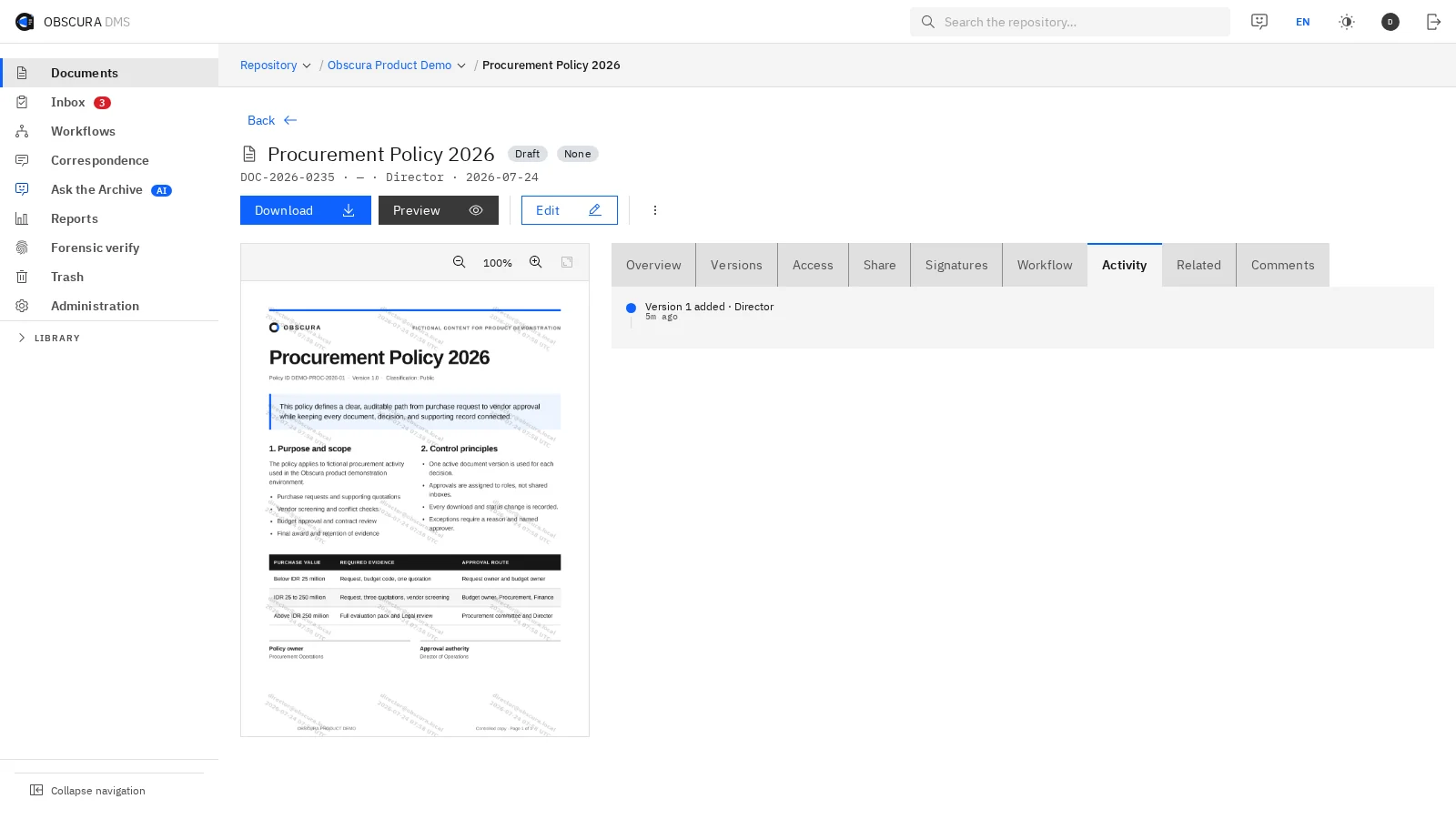
The Activity tab of a sample document in Obscura, showing who added a version and when. Sample data
Fig. 9Review decisions with their evidence. Inspect version changes and activity without assembling records from separate applications.
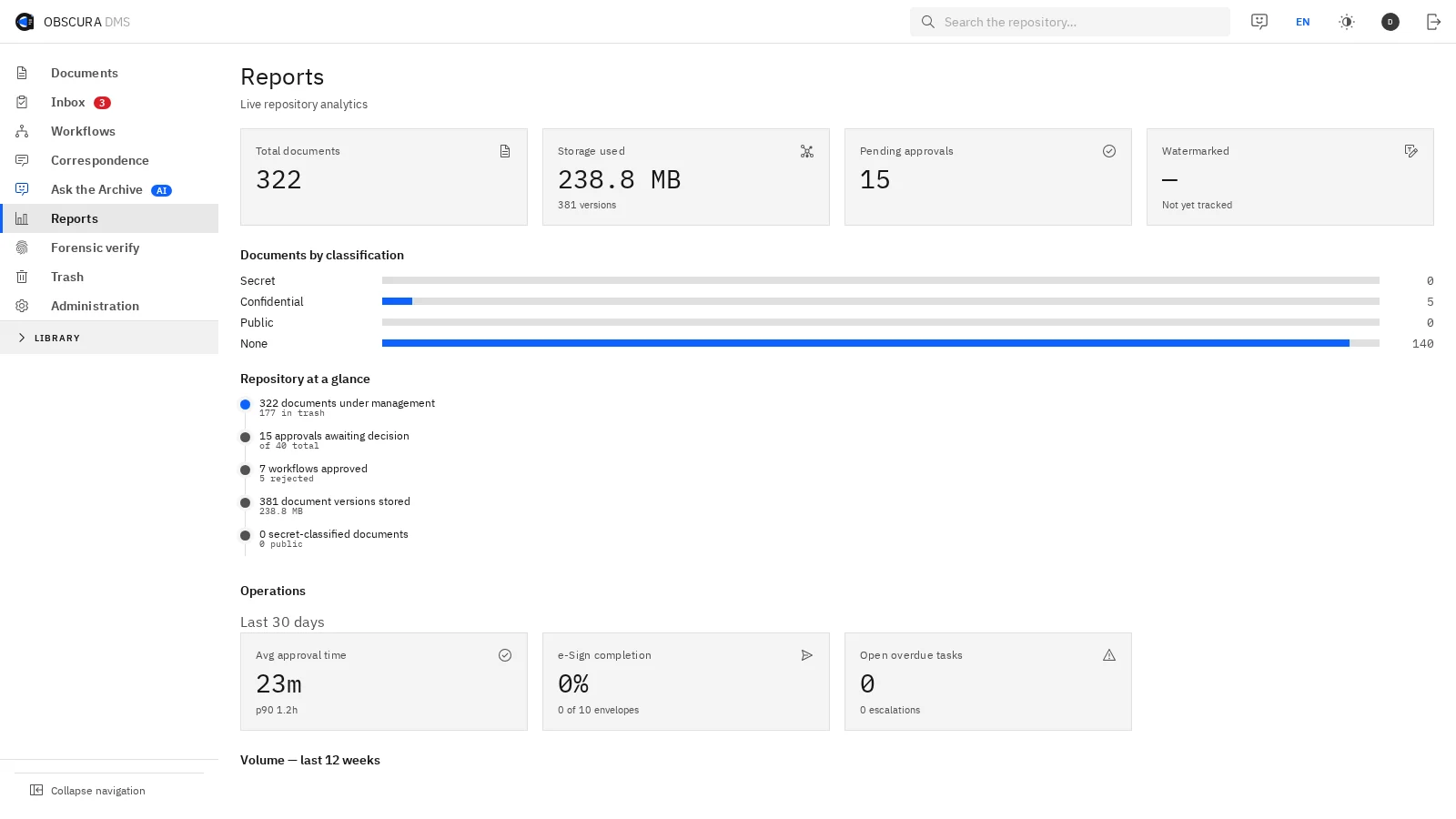
The Reports page in Obscura, with document totals, storage used, pending approvals and documents by classification. Sample data
Fig. 10See workload and pending decisions. Review document volumes, pending approvals and storage use.
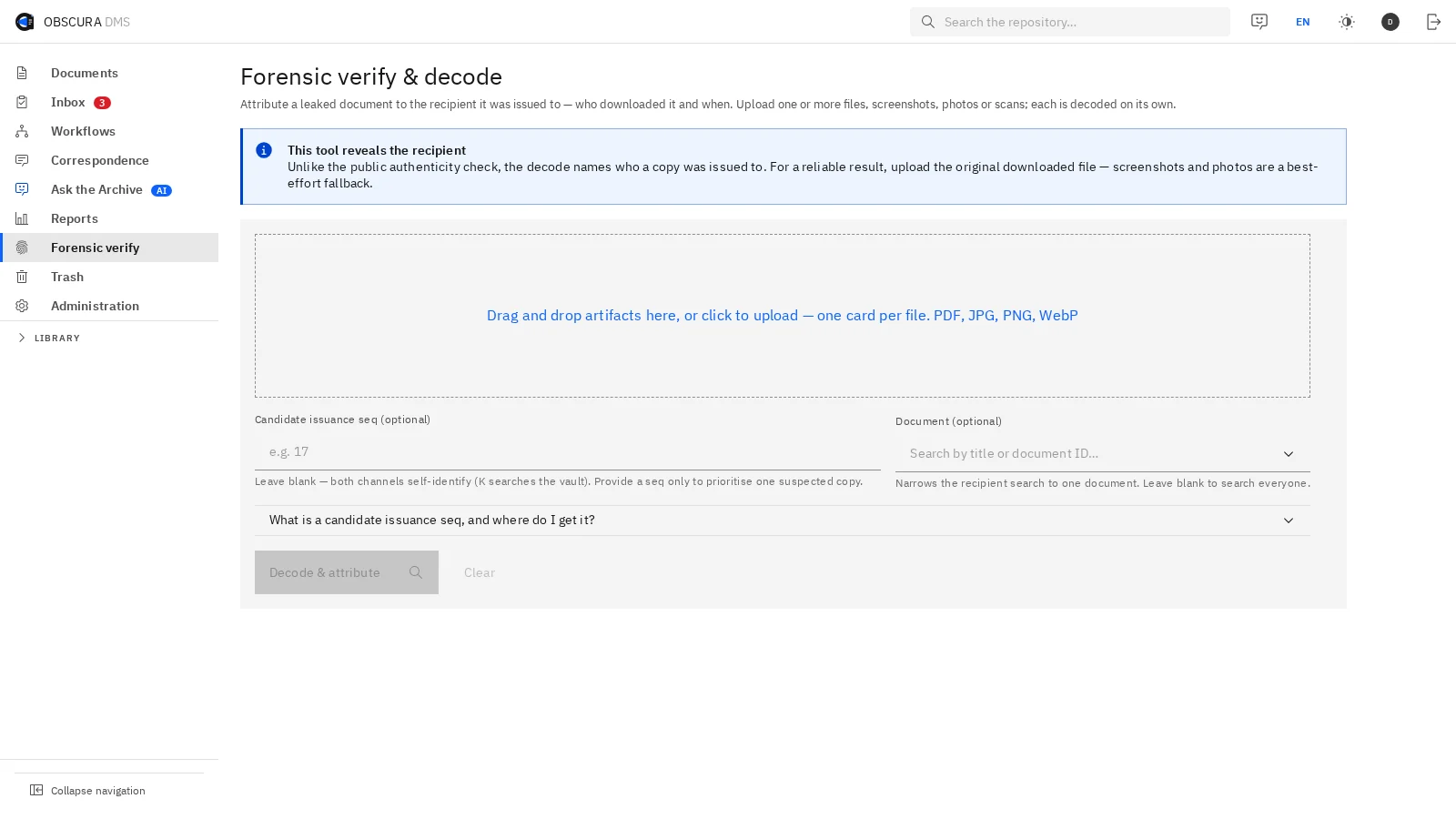
The forensic verification page in Obscura, where a recovered copy is uploaded to find out who it was issued to. Sample data
Fig. 11Support investigations into shared copies. Inspect a recovered document copy for evidence of who received it.

(03)Start with one process

Pick one recurring process, and we will measure it with you before you decide to expand.

It could be correspondence, an employment contract or a vendor agreement. Together we agree on the workflow, the teams taking part and how success is measured. Then we compare turnaround, manual handoffs and evidence quality with the way your team works today.

You then use those results to decide where Obscura should fit in your organisation.