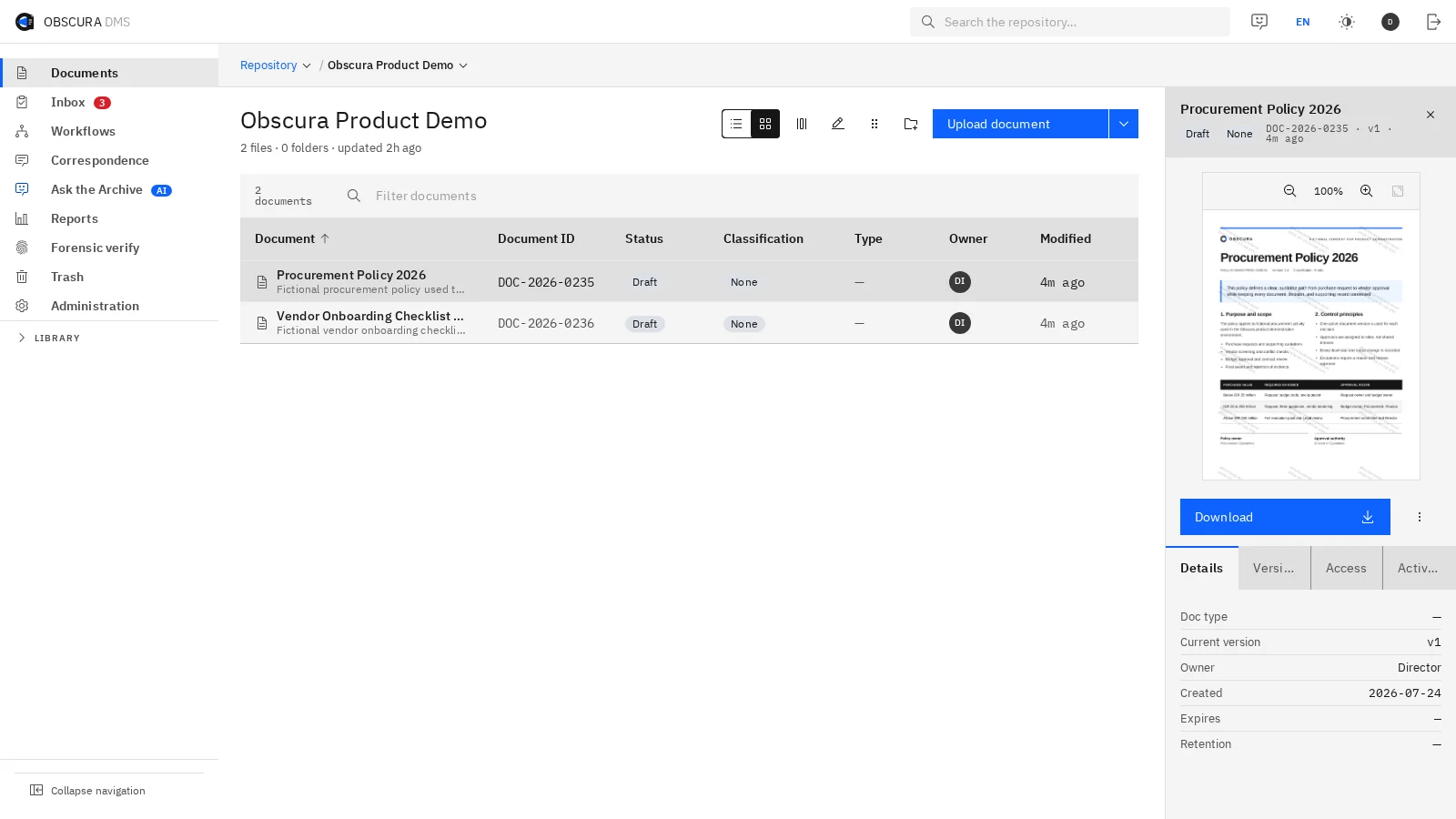
In every industry, one important document still takes the long way round.
Choose your industry to follow one familiar document through the way it moves today and the way it moves in Obscura. These examples are illustrative, and we adapt the scope to your documents, systems and controls during discovery.
Illustrative examplesPhased migrationConfigurable workflowsClear data boundaries
Choose an industry, and follow one of its documents from the first request to the archive.
Each industry has its own documents and priorities, but the problem is the same, because the document moves between people, apps and folders that do not share a history.
(01) Document we followA credit agreement
Financial services: Agreements move forward faster when everyone can see who has the authority to approve them.
Obscura keeps the agreement, its supporting files, its approvals and the signing evidence together. Access and retention follow the sensitivity of each record.
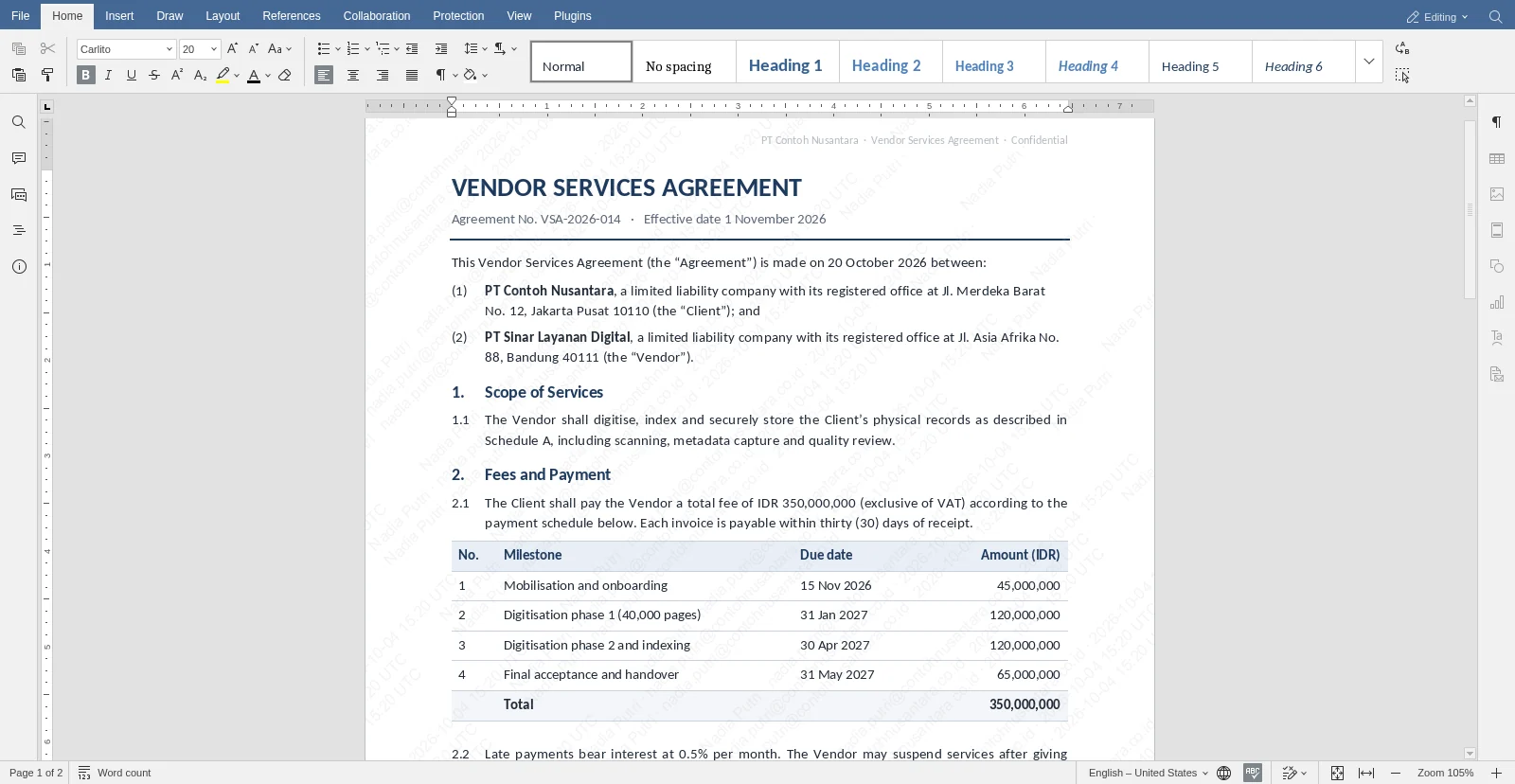
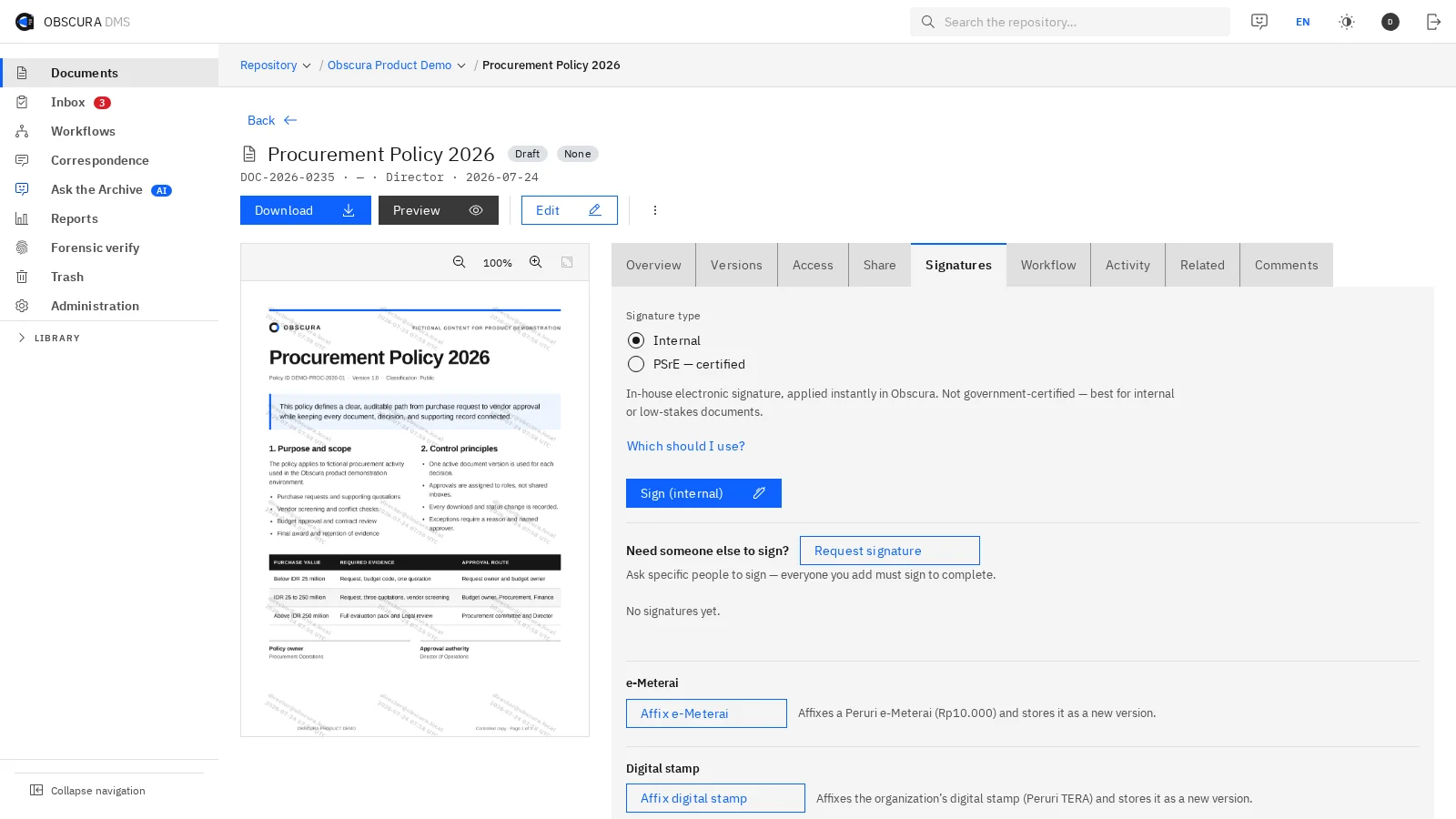
Fig. 1After approval, execution stays connected to the approved document. You place the signature and the e‑Meterai in Obscura, and the signed file is kept together with its history.
Certified signing (PSrE) and e‑Meterai connect through external providers.
Mapped during discovery
Sensitive-data boundaryApproval matrixPSrE and e‑Meterai routesRetention and legal hold
(02) Document we followA contract
Legal & corporate secretariat: The context behind a contractual decision should stay with the contract.
Contracts, minutes and resolutions become easier to find and review, because their versions, approvals and supporting documents are kept together for future reference.
ContractsTemplates and clausesMeeting minutesCorporate resolutions
Where the files come from
Contract folders, email, Word files, a previous DMS
In Obscura
Party, date, type, status, access
New flow
Search, edit, approve, sign, retain
How it runs today
Separate threads and unclear versions
6 steps→4 steps
01Requested over email
02Negotiated across several threads
03Nobody is sure which version is final
04Printed, signed, stamped and scanned
05Stored in personal folders
06Due diligence starts from zero
With Obscura
Controlled versions and a connected history
01Requested through a form
02One draft with one version history
03E‑signature and e‑Meterai on the same document
04Precedent is one search away
Your team handles the file fewer times and no longer has to reconstruct a contract's history by hand.
This is an illustrative workflow, and the scope and outcomes depend on your process and the modules you choose.
01
Find contracts and precedent
Search by keyword or by meaning across the documents that each user is allowed to open.
02
Review with the full context
Comments, versions, metadata, related documents and approval decisions stay connected to the contract.
03
Invite external parties and close the contract
Share a protected signing link, complete the execution, and then apply retention or a legal hold.
Sample data
Fig. 2During drafting and review, you edit the contract where its history is kept. The DOCX opens in the browser, and your edits become a new version before the routing continues.
Certified signing (PSrE) and e‑Meterai connect through external providers, and search by meaning uses the AI module.
Mapped during discovery
Contract metadataAccess and confidentialityExternal signing tierContract retention
(03) Document we followA standard operating procedure (SOP)
Manufacturing & energy: Operations run on approved procedures, so everyone needs to be working from the same version.
SOPs, work instructions and vendor records go through review and publication in Obscura, so teams can see which version is approved and check its history.
Procedures stop depending on chat groups and on separate copies in each department.
This is an illustrative workflow, and the scope and outcomes depend on your process and the modules you choose.
01
Build the document register
Organise documents by site, process, owner, type, effective date and review cycle.
02
Review changes before they take effect
Edit Office files, compare versions, request approval and then publish the approved version.
03
Retire outdated versions
Mark old content as obsolete, point users to the latest publication, and apply the review and retention schedules.
Sample data
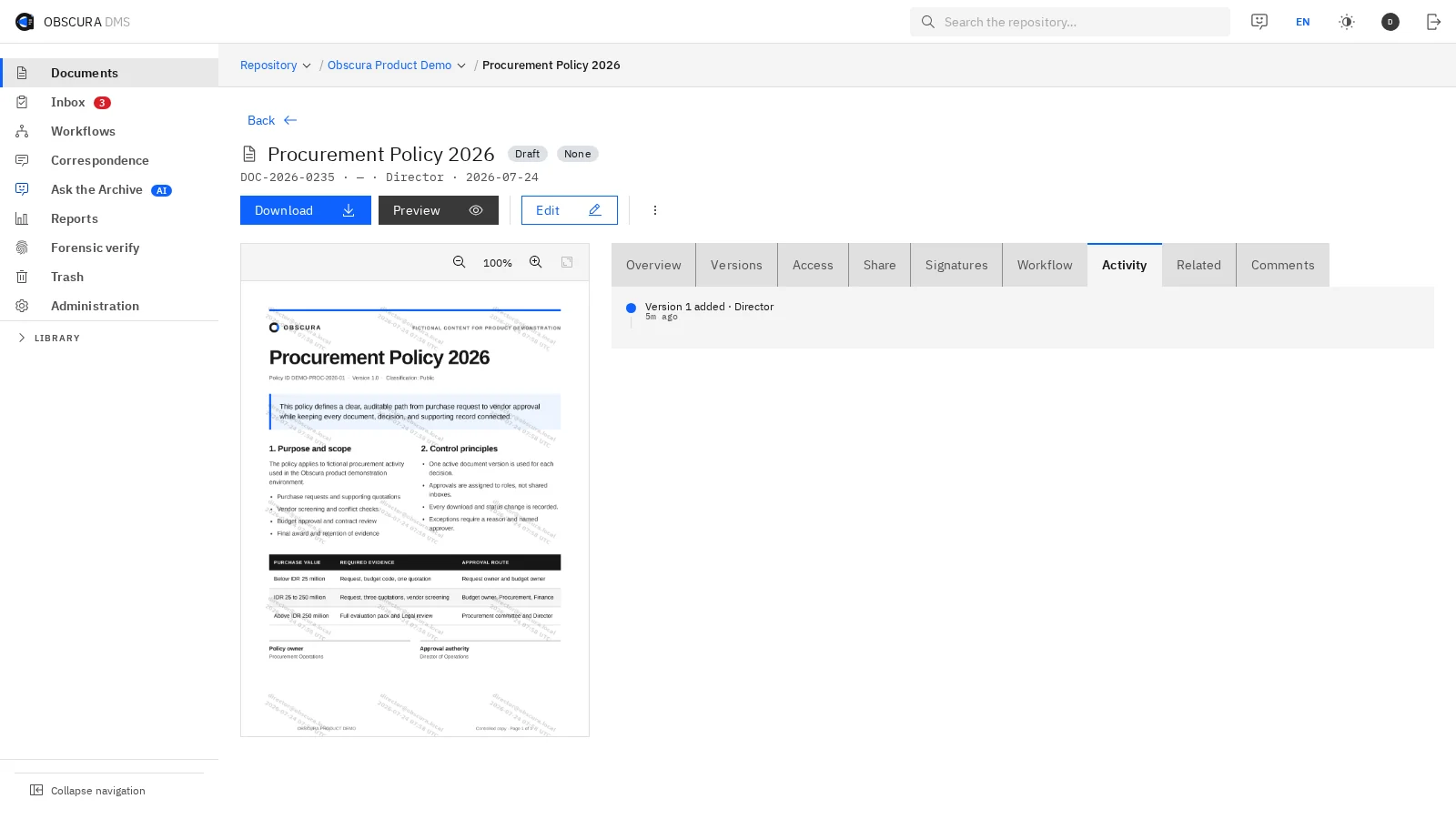
Fig. 3During an audit, you can see who changed what and which version is in effect. Versions, actions, times and document status can all be checked in one place.
Mapped during discovery
Document registerProcess approvalsPublication and retirement rulesReview cycles and retention
(04) Document we followAccreditation evidence
Education: Accreditation evidence is easier to manage when each document has an owner and a deadline.
Obscura assigns owners, collects evidence and keeps the review history across departments, so there is less to coordinate before an assessment.
Accreditation evidenceAcademic policiesDecisions and resolutionsDepartment archives
Your team spends less time collecting evidence at the last minute and asking for the same documents again.
This is an illustrative workflow, and the scope and outcomes depend on your process and the modules you choose.
01
Organise by standard and department
Map the evidence type, period, owning department, status and permissions before migration.
02
Request missing documents
Create document requests, assign owners and deadlines, and then track what has arrived.
03
Review and keep the history
Versions, comments, approvals and activity stay available after the accreditation cycle ends.
Sample data
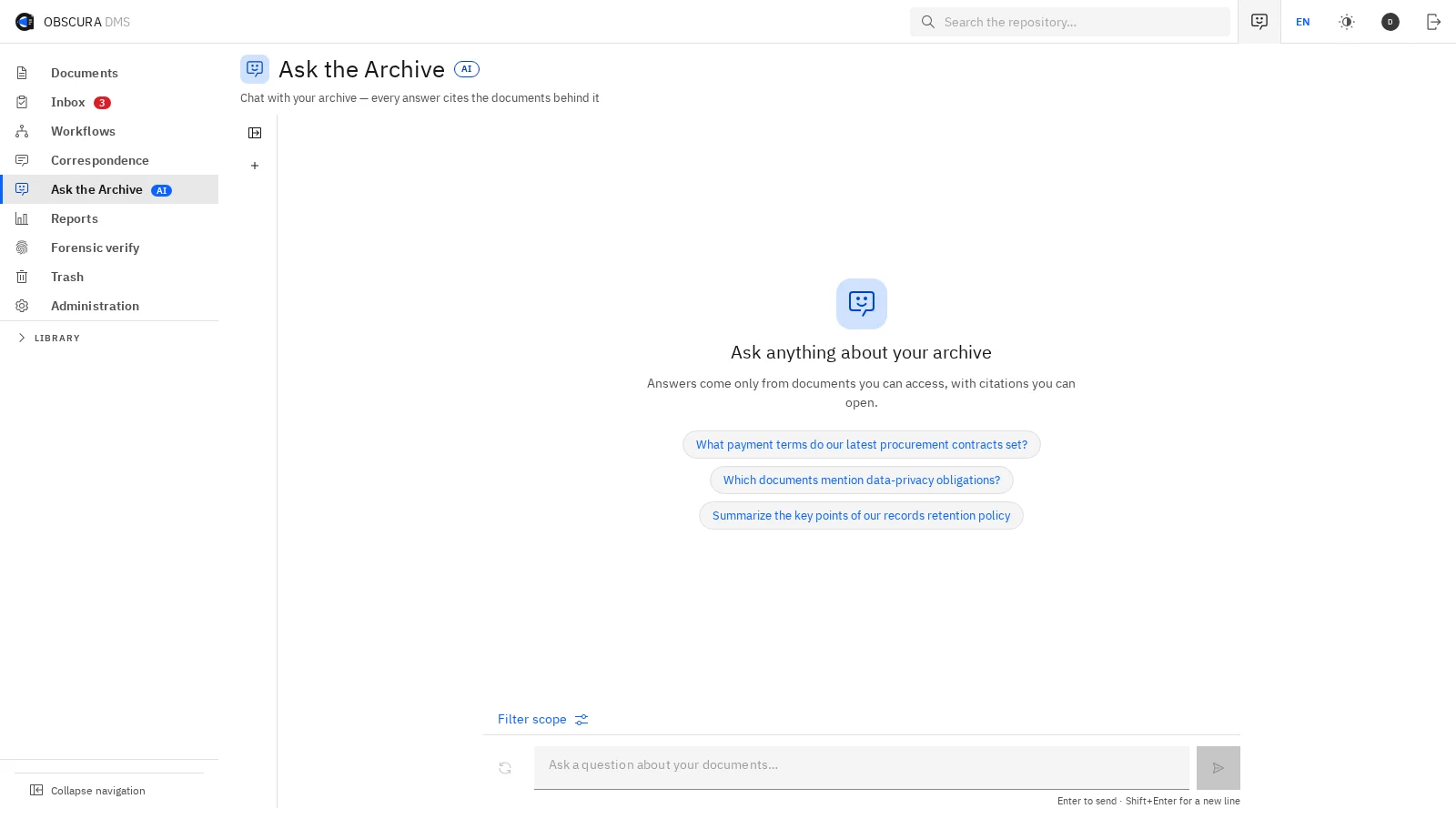
Fig. 4While you prepare for accreditation, you can find the evidence and open its source. Teams search by keyword or by meaning and then open the documents behind each answer.
Search by meaning and answers with sources use the AI module.
Mapped during discovery
Standards and departmentsEvidence owners and deadlinesAccess across departmentsRetention by period
(05) Document we followAn incoming letter
Government and state-owned enterprises: Official decisions stay accountable when every instruction and its follow-up are on record.
Obscura connects correspondence, routing instructions, follow-up and records, and it brings existing archives into a controlled structure that outlasts changes in staff.
Incoming and outgoing lettersInternal memosDecisions and policiesDepartment archives
Your team prints less, routes less by hand and spends less time looking for correspondence.
This is an illustrative workflow, and the scope and outcomes depend on your process and the modules you choose.
01
Register and classify
Record the origin, destination, registry number, sensitivity, unit and metadata before routing begins.
02
Route to the right role
Send instructions to people or positions with deadlines, status, delegation and clear escalation.
03
Complete the follow-up and keep the record
Responses, attachments, decisions, activity and retention stay connected to the original letter.
Sample data
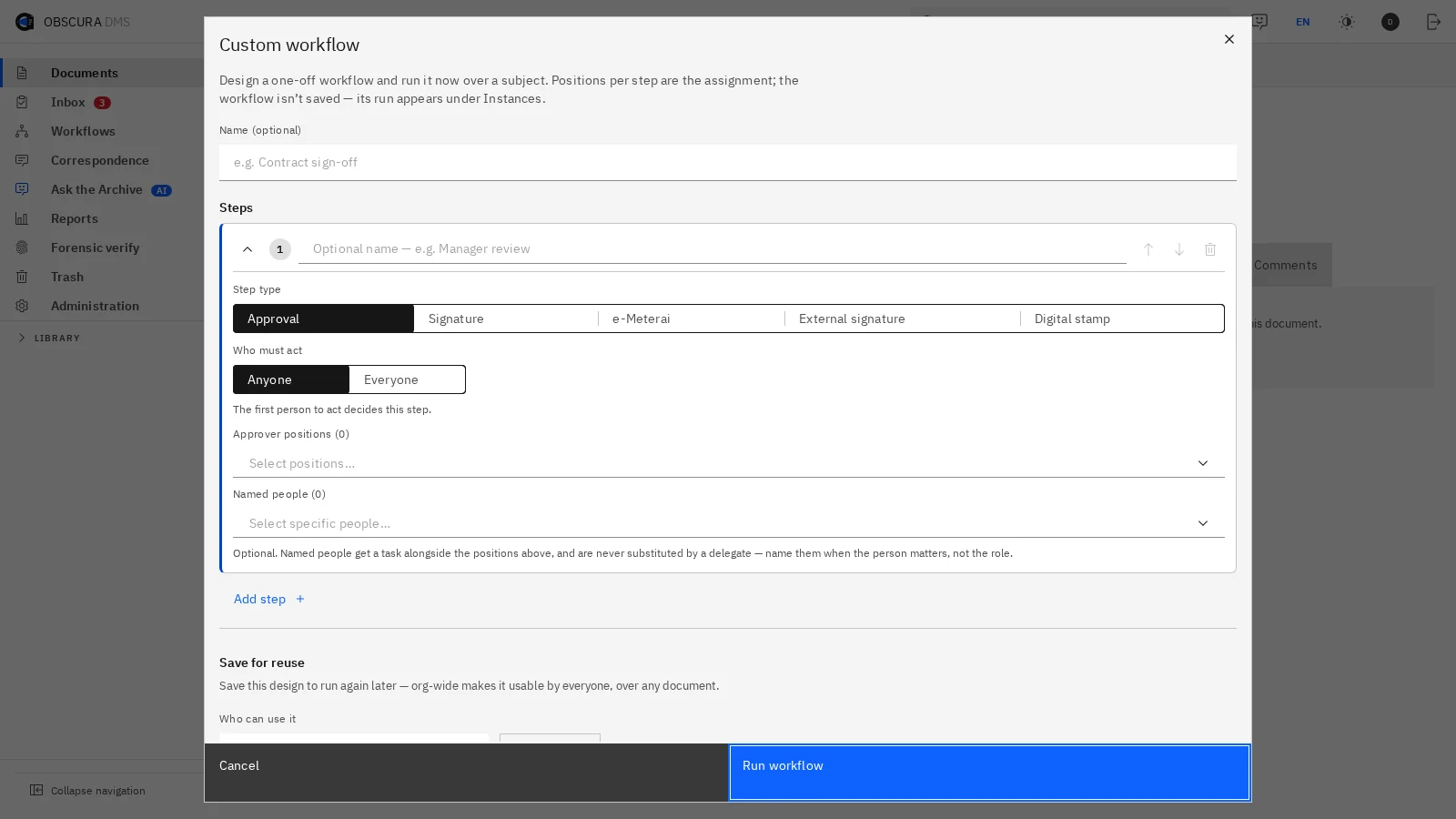
Fig. 5Before the new process goes live, you confirm who is accountable for each step. Review the assignees, task order, deadlines and required decisions with the teams responsible.
Units and positionsNumbering and classificationClosed-network profileRetention by record type
(02)Your existing records
Your existing records move into Obscura in stages that your business owners can check.
We test representative records before the cutover and check access, search and file reconciliation, so that your teams can judge the result before the full migration.
01
Map the sources
Sources can include shared drives, exports from a previous DMS or other systems, email and scanned files.
02
Clean and map
Define the target folders, document types, metadata, owners and access.
03
Check a sample
Check OCR, search, previews, metadata and permissions on a representative sample.
04
Migrate in batches
Each batch is reconciled before the next one moves, and the new way of working starts after a planned cutover.
Sample data
Fig. 6When the sample arrives, your business owners can review it before approving the rest. They check folders, metadata, previews and search results in the new structure.
Whatever your industry, four decisions shape the migration, and they become your acceptance criteria.
What moves?
Choose the sources, periods, file types and volume, and decide what stays behind.
What is the target structure?
Define the folders, metadata, document IDs, owners, classification and access.
How is the move verified?
Agree on file reconciliation, samples, OCR, metadata, permissions and sign-off.
What starts after the cutover?
Choose the workflows, user groups, integrations, retention rules and the initial support model.
(03)Start with one document
Pick one document from your industry, and we will follow its journey through Obscura together.
Choose one document set and a workflow that recurs, and we will agree on the controls and outcomes your team needs before you decide on a rollout.

 Sample data