
(00)Home / Capabilities
Every stage of a document's journey has a capability behind it, and each one shows you how it is delivered.
Obscura starts with a document foundation that every organisation gets. You add the modules, connectors and project work that your priorities need, and the label on each item tells you which is which before you invest.
- Core DMS included
- Add modules as needed
- On-premise
- Bahasa Indonesia + English
Where to start
Most organisations start with one of four priorities, and all four run on the same document foundation.
- 01
Contract Intelligence
Connect an agreement to its amendments, delivery records and invoices, so reviewers can see each commitment in its context.
Explore Contract Intelligence - 02
Project Intelligence
Bring a project's requirements, minutes, reports and contracts into one view, and check the source behind every connection.
Explore Project Intelligence - 03
Collaboration
Move reviews forward with a clear owner at every step.
Explore Collaboration - 04
Document Control
Make sure your teams work from the version that your business relies on.
Explore Document Control
Know what your investment includes
Every capability carries a label that shows how it is delivered, so you can see the scope of each investment before you commit.
- Foundation
- Included in the core DMS.
- Module
- An optional module you add when you need it.
- Connector
- Works through an external provider or system.
- Project scope
- Implementation work agreed in your project.
- Companion application
- The Obscura Mobile app.
When an item carries two labels, such as Module + connector, both apply. See what each module includes
(01)Capture & migration
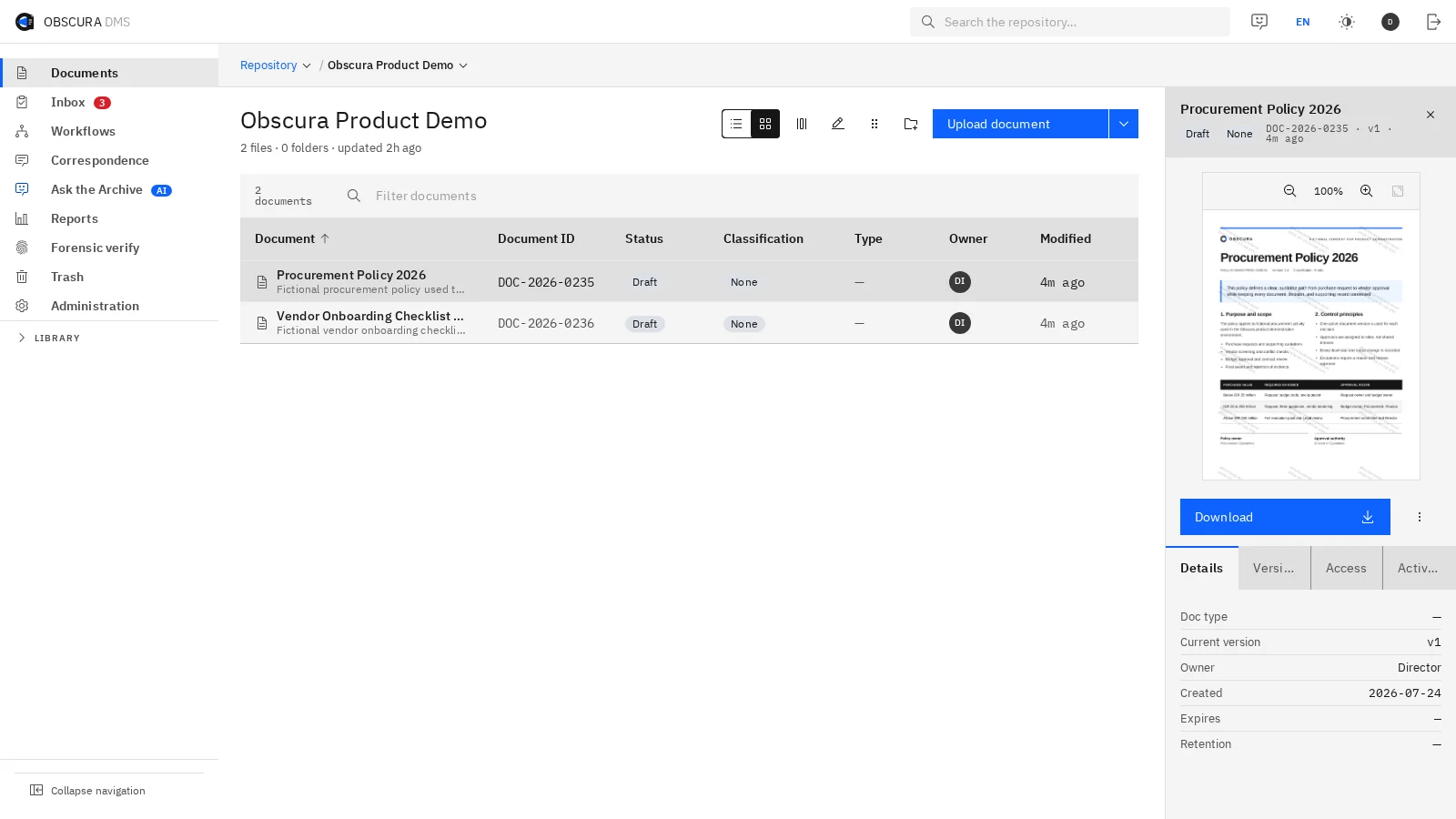
Bring your existing files and scans into one controlled repository, and keep the context that your teams still need.
Digital files and scanned paper arrive in the same place, and any migration is planned around the folders, metadata and access rules that you want to keep.
Reduce migration uncertainty
Validate a sample before you commit to the cutover.
We check structure, metadata, access, OCR results and file counts on a representative set of records, and you use the results to confirm the scope and plan the rollout.
- 01Map the sourcesShared drives, exports from a previous DMS or other systems, and scanned files
- 02Validate a sampleOCR, folders, metadata and access
- 03Migrate in batchesFile counts and results reconciled before the cutover

 Sample data
- 01.1
Foundation
Collect records with less admin
- PDF, DOCX, XLSX, PPTX, images, text and other Office formats
- Bulk upload with shared metadata
- Document requests with intake tracking
- Open with Obscura from mobile devices
- 01.2
Foundation
Make scanned documents searchable
- Indonesian and English OCR
- Scanned PDFs and image files
- Per-page detection for mixed documents
- Extracted text is searchable straight away
- 01.3
Module · AI
Reduce manual classification
- Folder suggestions based on document content
- Suggested classification, tags and description
- Extraction of key document fields
- A person confirms each suggestion before it is saved
- 01.4
Project scope
Plan and verify the migration
- Migration from a previous DMS and other mapped sources
- Mapping of folders, metadata, ownership and access
- Migration batches, logs and reconciliation of results
- Cutover planned around volume and downtime
(02)Create & control
Give your teams one reliable record for every document, with its versions, owner and access kept together.
When content, versions and permissions live in one place, people know which file is current, and decisions rest on the right information.
- 02.1
Foundation
Organise work across teams
- Nested folders with access controls
- List and grid views, configurable columns and saved views
- Drag and drop, pins, moves, trash and restore
- Bulk actions and a ZIP export that respects permissions
- 02.2
Foundation
Control changes and published versions
- Compare versions, inspect snapshots and roll back
- Working copies kept apart from published versions
- Locking for files whose original formatting must stay intact
- 02.3
Foundation
Identify and classify records
- Document types configured to your organisation
- Tags, attachments, document links and descriptions
- Document IDs and numbering schemes that follow your rules
- Working, final, expired and obsolete states
- 02.4
Foundation
Keep the discussion with the record
- Comments and discussions attached to the document
- Access granted to groups, positions or users
- Command search and keyboard shortcuts for routine work
- 02.5
Foundation
Standardise how documents start
- Start from a blank file or an approved DOCX template
- Type, number, classification and access applied at creation
- A final version published without breaking the document's history
(03)Approve, edit & sign
Drafting, review, approval and signing happen in one workspace, so nobody has to send files between applications.
Each step hands the same document to the next person, which removes most of the downloads, uploads and manual follow-up that usually sit between them.
- 03.1
Foundation
Assign work and track decisions
- A saved workflow, or a one-off route for a single document
- Approve, reject or return for revision, with a note on each decision
- Assignment to users, positions or external parties
- SLAs, deadlines, escalation, delegation and an action inbox
- 03.2
Module · Office Editing
Edit Office files in the browser
- DOCX, XLSX, PPTX, ODF and legacy Office formats
- Edits saved as a new version
- Organisation fonts installed by an administrator
- Publish a working copy as a final PDF
- 03.3
Module + connector · e-Sign & e‑Meterai
E-signatures, PSrE and e‑Meterai
- Internal PAdES signing, and external signers without an account
- Parallel or sequential multi-party signing
- Placement of signatures, e‑Meterai and digital stamps
- PSrE and e‑Meterai providers confirmed for each deployment
- 03.4
Module · Correspondence
Manage official correspondence
- Incoming and outgoing letters, classification and registry
- Letterheads, DOCX templates and letter numbering
- Disposition to users or positions, with instructions and deadlines
- Approval, signing, stamping and filing in one flow
Certified signing (PSrE) and e‑Meterai connect through external providers, and the internal PAdES signature is not a PSrE-certified signature.
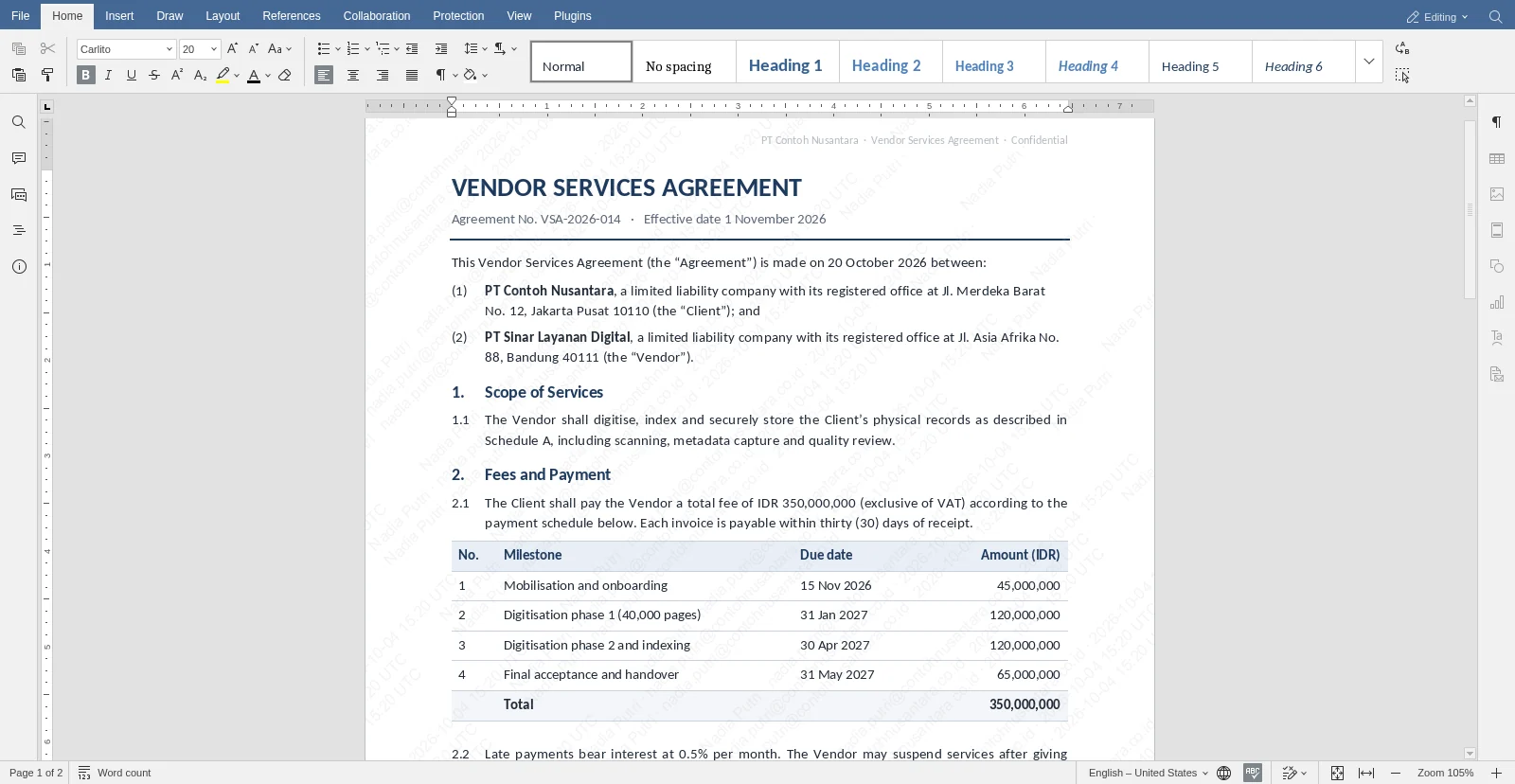
Less coordination during review
Edits stay connected to the decision that follows them.
Changes made in the browser are saved as a new version that is ready for review or signing, so nobody has to download, upload and reconcile files.

 Sample data
(04)Keep & share
Stored documents keep their rules, so you can share them with clear limits and see who did what.
Retention, sharing and download rules follow each record, and the activity around it stays on file for audit and investigation.
- 04.1
Foundation
Retain and preserve records
- Retention catalogue by document type
- Legal holds that prevent deletion
- Review, destroy or extend
- Reminders for records due for disposition
- 04.2
Module · Records Compliance
Structure formal records management
- Archive classification codes
- Retention set per folder
- Record transfers
- A records centre
- 04.3
Foundation
Share outside the organisation
- Links that expire and can be revoked
- Password, email OTP or allow-list protection
- An access log for every link
- Sharing rules that follow classification
- 04.4
Foundation
Control viewing and downloads
- Secure preview that does not send the original PDF to the browser
- Classifications that block downloads but still allow reading
- Identity watermark on preview pages
- Members-only folders and step-up verification
- Mobile screenshot protection for selected documents
- 04.5
Module · Secure Folders
Encrypt your most sensitive folders
- Encrypted folders with a key for each folder
- Break-glass access for emergencies
- Each decryption checked against the person's identity and recorded in the audit trail
- 04.6
Module · Watermarking
Trace evidence in distributed copies
- An invisible forensic mark on each protected download or shared copy
- A console for examining a recovered copy
- An issuance ledger linking file, version and recipient
- Compatibility tested on your own documents
- 04.7
Foundation
Review activity and reports
- Actions, times, users, versions and status tied to the same document
- History filtered by event and time range
- Operational reports on documents, activity and processes
- Evidence opened directly from a report or the audit trail
(05)Find & ask
Your team can find the information behind a decision and check the source that it came from.
Search covers both content and metadata, and AI answers link back to their documents, while both stay within each person's access rights.
- 05.1
Foundation
Search content and metadata
- Titles, content, tags, metadata and document IDs
- Filters for classification, type, status and expiry
- Results filtered by each user's access
- 05.2
Module · AI
Semantic search
- Search by meaning as well as matching words
- Similarity scores and related documents
- Embeddings that can run locally
- 05.3
Module · AI
Ask your archive
- Questions to one document or a chosen set of folders
- Answers with sources you can open
- Conversation history and search scope kept
- 05.4
Module · AI
Choose how you use AI
- A local model, an approved provider, or AI switched off for the whole deployment
- Usage limits and settings in the admin console
- MCP text access within identity, permission and audit controls
Semantic search, Ask your archive, classification suggestions and the AI settings all belong to the one AI module. See what AI does →
Evidence your team can check
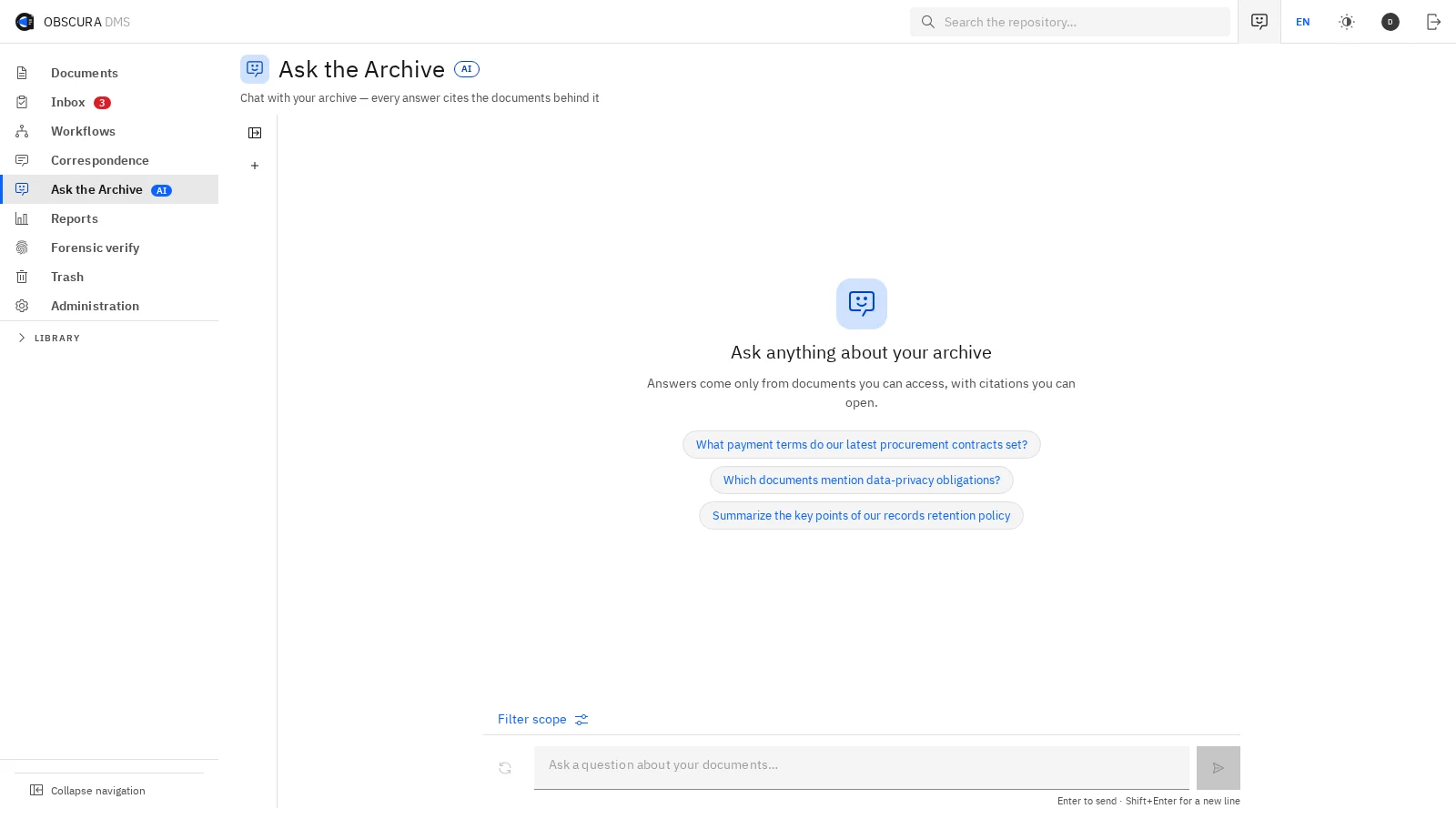
Every answer shows the source that it came from.
AI answers link to the documents behind them, and retrieval respects document permissions, so people only see what they could already open.

 Sample data
(06)Contract & Project Intelligence
Each document is connected to the contract and the project that it belongs to.
Your team can link documents to their contract and project by hand. With the AI module, AI also suggests connections and shows the supporting quote, but nothing is linked until someone accepts it.
- 06.1
Module · Contract & Project Intelligence
Contract Intelligence
- Agreements, amendments, delivery records and billing documents connected by role
- Agreement hierarchies and delivery dependencies in a graph or list
- Extracted parties, values, dates, clauses and obligations next to their source quotes AI module
- Contract review started by new versions, with amendment history kept
- Owners and reminders for obligations that a person has confirmed
- 06.2
Module · Contract & Project Intelligence
Project Intelligence
- Documents and contracts connected to projects with defined roles and scope
- Manual links between documents, shown in the relationship graph
- Requirements, responses, progress reports and decisions traced across records
- Records reused across projects without duplicating files
- AI discovery of connections, which a person accepts AI module
Contract Intelligence and Project Intelligence are the two halves of one module, Contract & Project Intelligence, and you license them together. Access to a project does not open documents that are restricted.
(07)Security, mobile & platform
Obscura follows your standards for identity, hosting, integration and recovery, so IT keeps control while teams get on with their work.
Every module runs on the same foundation, which means one set of accounts, permissions and operating procedures.
- 07.1
Foundation
Connect identity and govern access
- Local accounts, OIDC SSO, LDAP/Active Directory and SCIM
- TOTP, session management, devices and recovery
- Five-tier ACLs with inheritance, overrides and deny rules
- Functional roles kept apart from content access
- 07.2
Foundation
Match deployment to your operations
- On-premise, closed-network or controlled-connector profiles
- PostgreSQL, S3/MinIO object storage and Docker-based deployment
- Scheduled backups, a backup catalogue and a restore procedure
- Health checks, metrics, optional tracing, rate limits and quotas
- 07.3
Companion application
Obscura Mobile
- Action inbox, browsing, full-text and semantic search
- Secure preview, version history and offline pins
- Approve, reject, route, sign, apply e‑Meterai and stamp
- 07.4
Foundation
Connect your existing systems
For IT and security
Your IT and security teams can review the architecture, dependencies and external connections before the pilot starts.
Review security and architectureBuild the case for rollout
Start with one priority, and expand once it has proved its value.
Choose one process and agree on how to measure its turnaround time, manual effort and control requirements. The pilot runs against those criteria, and you decide on a wider rollout from the results.
Capabilities depend on the modules you choose.